 Tendfolio
Guides and FAQ
How to use Tendfolio, feature by feature, with screenshots of the panel. Where there is a procedure the steps are numbered and meant to be followed in that order; ticked lists are things to know, not things to do. If you are looking for the endpoint reference, it lives in the API documentation.
Frequently asked questionsSections
First steps
Tendfolio looks after WordPress installations that do not share a server and often do not share an owner. It connects to each one through a small plugin — the connector — and from that moment updates, backups, security and availability are watched and driven from a single place. Getting to your first monitored site takes four steps, in this order.
- Step 1. Create the organisation
Signing up creates an organisation: the container for your sites, the people who work on them and your plan. If you work for several clients you do not need separate accounts — all the sites live here and permissions decide who sees what. The free plan includes three sites, forever, with no credit card.
- Step 2. Connect the first site
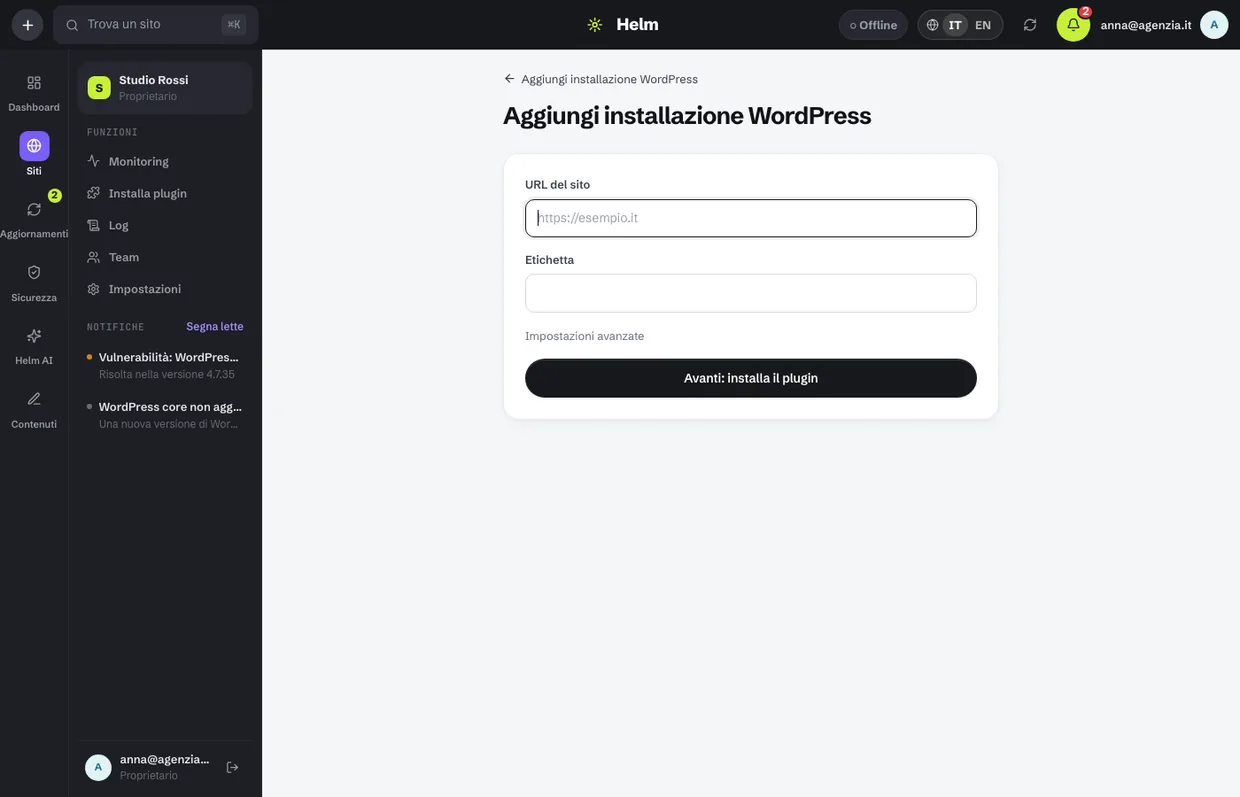
Go to Sites → Add WordPress installation and enter the address. Tendfolio generates a connection key: it is the one-time password the plugin uses to introduce itself to the panel, and the Open button carries it, already pasted, into the connector on the site. The label is the name you will see in the list, so the client's name is usually the right choice.
- Step 3. Wait for the first read
As soon as the connector answers, Tendfolio reads the WordPress version, plugins, themes, users, storage and security state. It takes seconds, and the site turns “Connected”. From then on that read repeats by itself several times a day, and the availability check starts immediately.
- Step 4. Decide who gets the alerts
Settings → Notifications: choose email and Telegram, category by category. This is the step most people skip, and without it a site can stay down all night with the alert sitting in the panel's bell icon — which nobody looks at at three in the morning.
Connecting a site
The connector is a WordPress plugin that talks only to Tendfolio. Every request is signed with the connection key, so nobody else can drive it, and the site's own login credentials — WordPress username and password — never pass through here and are never asked for. The plugin stays yours: if one day you stop using Tendfolio, you uninstall it and the site does not notice.
How to install it
- In Tendfolio, open Sites → Add WordPress installation and write the full address (with
https://). The label fills itself in with the domain: change it only if you prefer another name. The page with the steps opens: keep it open until the end. - Download the plugin with the button in the first step: it is a
.zipfile, do not unpack it. - In the site’s WordPress go to Plugins → Add New Plugin → Upload Plugin, choose the
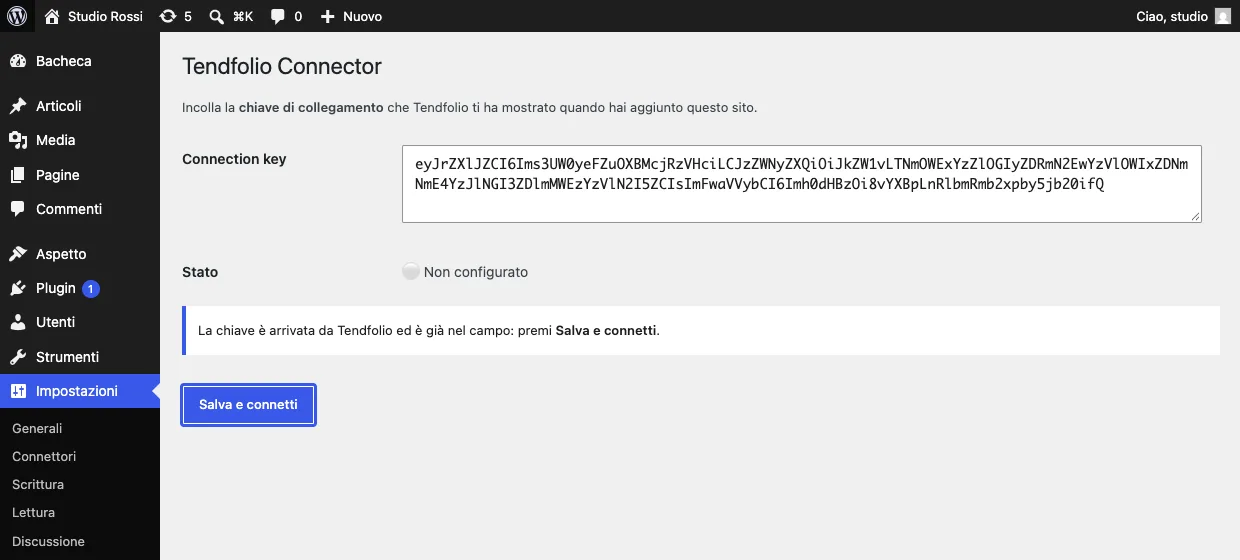
.zip, press Install Now and then Activate Plugin. A Tendfolio entry appears under Settings. - Go back to Tendfolio and press Open next to the site’s address: Settings → Tendfolio opens with the key already in the field, even if WordPress asks you to log in first. Press Salva e connetti. If the field is empty, copy the key from the Tendfolio page and paste it yourself.
- Nothing else to do: as soon as the connector answers, the Tendfolio page says so on its own and takes you to the site card, where the first read has already started. If you closed the page before connecting, open the site from Sites: its card shows Connect this site, with the same steps and a new key — the old one stops working.
Site states, and what they mean
- Waiting — the key was generated but the plugin has not been in touch yet. It is almost always one of two things: the key pasted half way (it is long, use the copy button) or a site that cannot be reached from the internet — local, behind a VPN or password-protected.
- Connected — all good: Tendfolio reads the site's state and, when you ask it to, writes to it (updates, backups, fixes).
- Disconnected — the site has not answered for a while. Tendfolio keeps retrying on its own, with nothing needed from you: when it becomes reachable again it reconnects. Only if the plugin was removed or reinstalled on the site, or WordPress was rebuilt, open the site card and use Reconnect it: it gives you a new key and the same steps as the first connection.
- Error — the plugin answers but something is wrong: invalid key, filesystem permissions, a PHP version that is too old. The exact message is on the site card. If the key on the site is no longer the right one, Reconnect it on the same card generates a new one.
What whoever runs the site decides
- In WordPress, Settings → Tendfolio, the section What Tendfolio can do on this site turns off one-click login as an administrator and restores, clones included. They’re on by default: turning them off is the choice of whoever runs the site.
- When they’re off, Tendfolio says so instead of trying: Open WP-Admin explains where to turn it back on, and a restore or a clone onto that site stops before touching anything.
- Updates, backups, checks and content keep working. To stop everything, the same page has Disconnect from Tendfolio: it removes the key from the site, and from then on Tendfolio can’t do anything there; backups already taken stay in Tendfolio.
- The connector installs plugins only from
WordPress.orgor from Tendfolio, and backups carrywp-config.phpwithout the session keys: rebuilding a site from scratch generates new ones, and whoever was signed in signs in again. From version 3.2 it accepts an update of itself only if Tendfolio signed it with a key that isn’t on its servers: if someone took control of them, they couldn’t send sites a connector of their own. From 3.4.1 the connection secret is not included in backups, and Tendfolio can replace it remotely without disconnecting the site: it did so on every site after the 21 October 2026 incident at its server provider, and you find it in the log as “Connection secret replaced by Tendfolio”.
If the site changes domain, update its address from the site card: Tendfolio keeps checking the one it knows, and an old address that no longer answers would be mistaken for an outage.
The dashboard
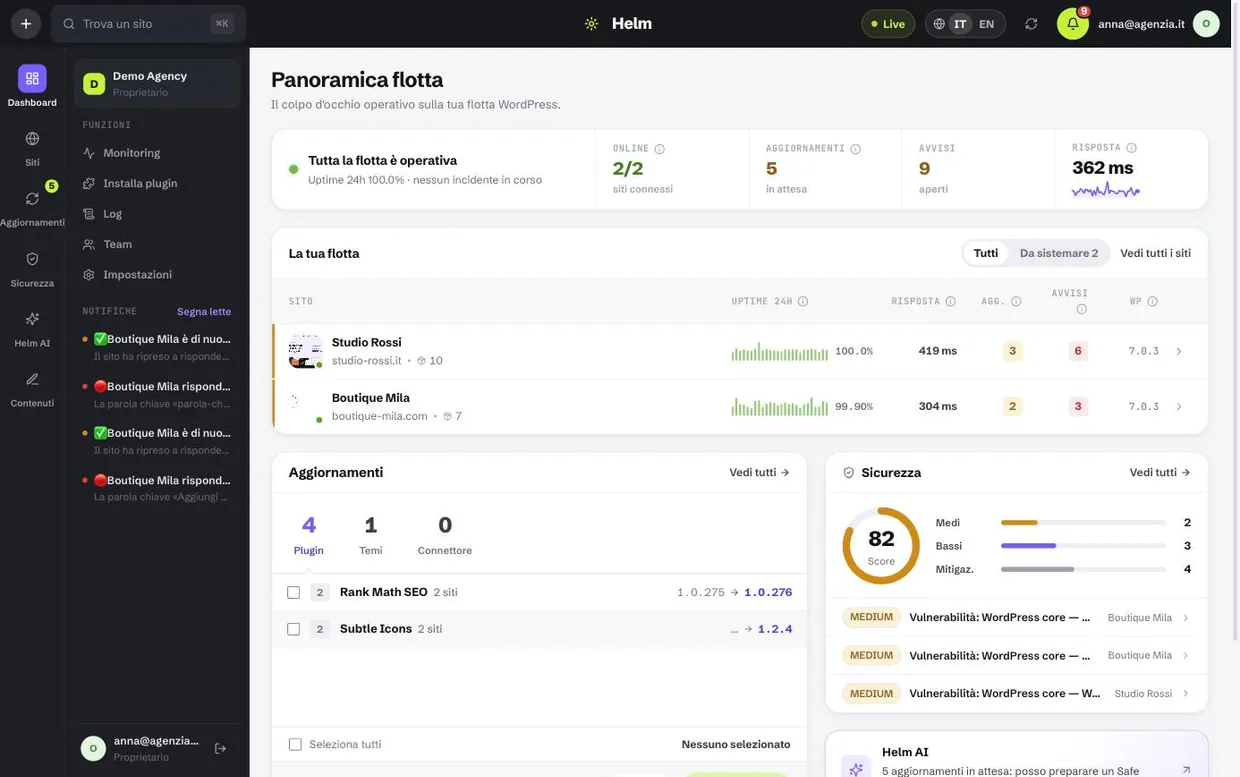
The first screen answers three questions, in the order you ask them in the morning: is anything broken? how are the sites doing? what do I need to do? At the top the alarm, if there is one; then the header, as in every section, which greets you and explains the page; then the health band, the To do list and your sites, one row each. Every piece of information appears once, in the right place.
- The coloured band at the top only appears when a site is unreachable right now (red), is no longer connected (red) or was down for much of the last 24 hours (amber). It always names the sites, and its button takes you where the problem shows: that site’s monitoring, or its page when the problem is the connection. Everything else — a vulnerability, an update — goes in the queue: a band lit for every task would soon stop being looked at.
- The band under the header says whether your sites respond and how well: “All online” or how many are not responding, then availability, average response and sites online, each with its judgement written next to it. “Below target” says more than a red number, and says it to people who can’t tell colours apart too. The period (24 hours, 7 or 30 days) applies to the band and to the site rows; the charts are in Monitoring.
- To do is a single list, numbered from the most urgent, with everything that needs a decision: sites down, severe vulnerabilities, upcoming expiries, connector and updates, broken links, failed operations. Each row says what, on which sites, and has its own button; the first, most urgent one has the filled button. An alert’s button opens its card in Security, with the fix; Show all opens the rows past the fifth. The number next to To do is how many there are. Each item says which sites it affects: a single site is a coloured tag that opens it where the fix is; several sites become “3 sites”, which opens into one row per site with its version, its own button and an arrow to go there.
- An update that fixes a security vulnerability is ONE thing to do, not two: it shows as “fixes a vulnerability” and comes before the other updates. Updating that plugin closes that alert.
- Below are your sites, one row each, those that need attention first: the status dot, name and address, availability and response in the chosen period, how many to-dos concern it and the way into WP-Admin. If a site is not “Operational” it says so next to the name: “Recovered” means it responds now but was down for much of the day, “Unstable” that it had a few short interruptions. With more than five sites, the ones that need fixing stay here; all of them are in Sites.
- Certificates and domains expiring within 30 days go into To do, with how many days are left (under 14, before updates); the ones further away — certificates usually renew themselves — are in Monitoring. Tendfolio AI is the mascot in the bottom-right corner: on the overview it opens with the first piece of advice about your fleet.
- The sidebar tells you where to look before you open a page: the red number next to Security or Monitoring counts what is broken right now, the amber one next to Updates what needs doing, the grey one next to Sites is just the total. At the top is search (also ⌘K, or Ctrl+K) to jump straight to a site or a page; during the free trial, at the bottom, the days left and the way to choose a plan.
- At the top of every section — Overview, Sites, Updates, Security, Monitoring, Activity log, Content, Tendfolio AI — a header explains what the page is for, with its main action and a link to the part of the guide that covers it. Once you know it, Collapse shrinks it to one line, section by section: the choice stays on your account, even after signing in again or from another computer, and Expand opens it again.
Sites and the site card
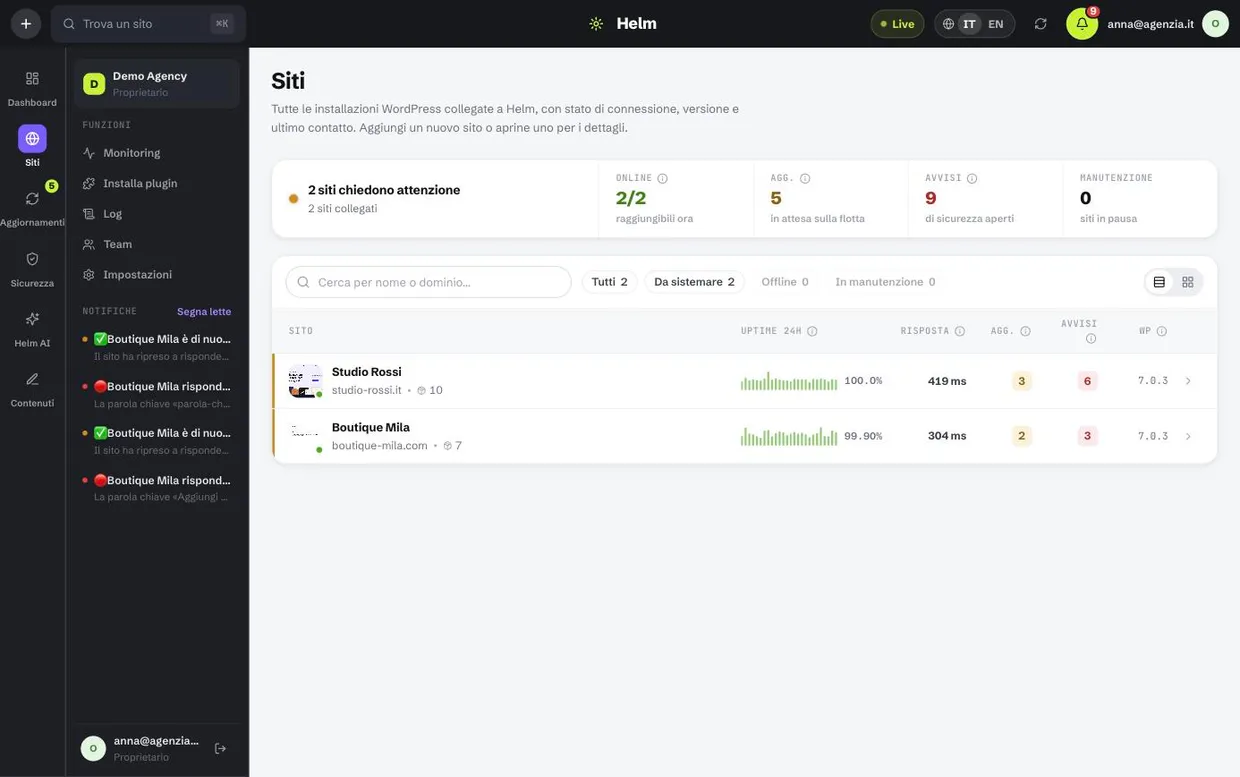
The site list is the working view: who is online, how long they take to answer, how many updates and alerts they have, which WordPress version they run. From here you search by name or domain, filter by state or by tag, or switch to the card view if you prefer thumbnails. Opening a site takes you into its card, split by subject. At the top of every tab, the header shows the site preview (refresh or hide it from below the image), its state, its address and its technical sheet: WordPress, PHP and connector versions, datacenter, installed plugins and last backup.
The site tabs
- Overview — at the top a sentence that says how the site is doing, then the four numbers (uptime, response, security, backups) and the To do queue, most urgent first: serious vulnerabilities, updates made outside Tendfolio, broken links, updates to run with Safe Update, minor notices. At the bottom the content, the visits, maintenance mode and the AI Copilot’s first suggestion.
- Security — the site’s alerts, most severe first; vulnerabilities of the same plugin share one row, which opens to show them one by one.
- Links — broken links found in the content, with where they are cited.
- Plugins — split into Active and Inactive, with installed version and available version. For each one you choose how it updates: automatic, manual or locked updates. Inactive ones can be activated again or deleted, with a confirmation on the row.
- Backup — the available copies with date and size, download and restore, plus the automatic schedule.
- Content — in three parts: the site’s posts and pages, Write with AI to generate new ones, and the AI editorial plan.
- Users — the site’s WordPress accounts, with role and posts written; from here you block whoever should no longer get in.
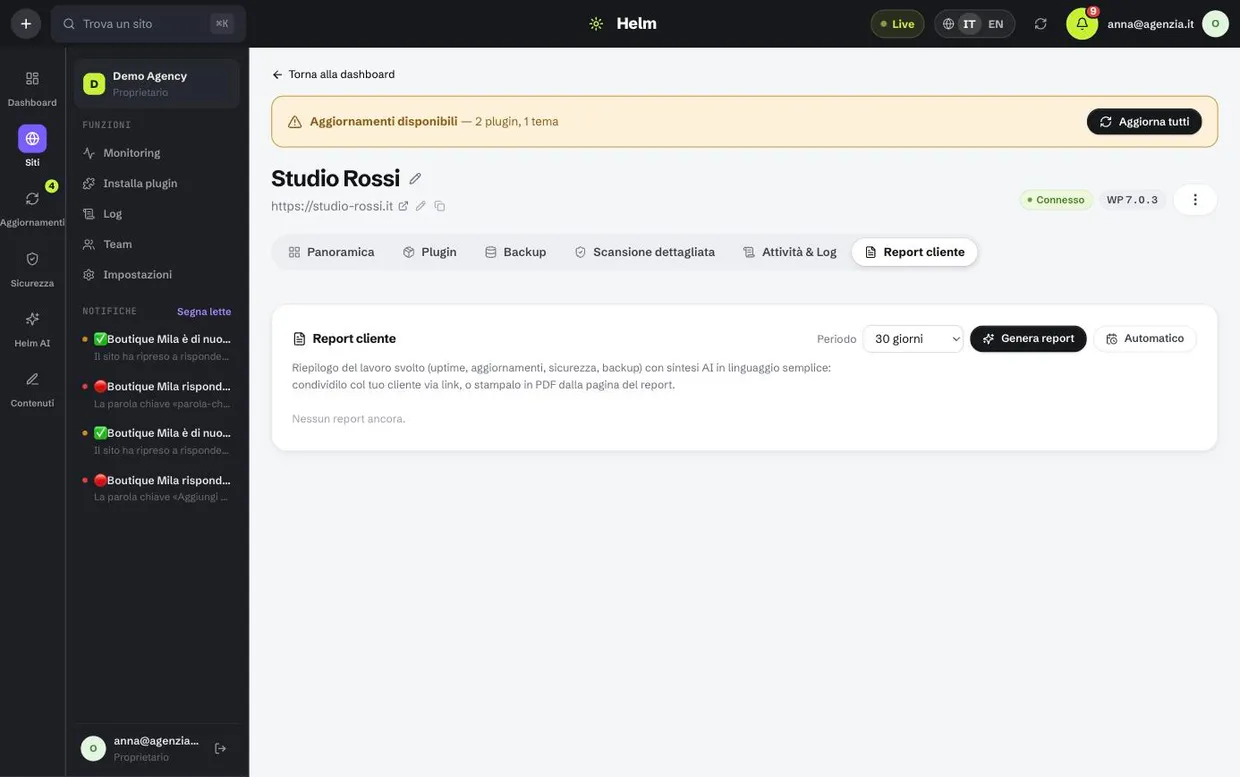
- Client report — the period summary to send to whoever pays, with the public link.
- Activity — everything that happened on this site, including changes someone else made directly in wp-admin.
What you can do from here
- Open WP-Admin in one click, with no shared passwords: Tendfolio opens a one-time session valid for 60 seconds. It is the right way to give a collaborator temporary access without creating them a user.
- Put the site in maintenance with a message you write. While it is in maintenance the checks continue but stay out of the statistics, so planned work does not eat into the month's availability.
- From the … menu at the top right of the header: rename the site, fix its address, download a fresh copy of the connector or update it remotely.
- Remove the site from the fleet when the relationship ends: the plugin stays installed but stops answering, and the history leaves your panel.
- Coloured labels — the client, a contract, a priority (“Rossi Ltd”, “Monthly maintenance”, “VIP”). A site can have up to 20; they also appear in the site header, and clicking one takes you to the list filtered by it.
Adding and using labels
- In the sites table click the site’s labels, or + Label when you hover a row without any: a menu opens attached to the cell. The same menu opens from the button next to the labels in the site header.
- Tick the labels you want: every tick saves by itself, there is nothing to confirm. To create a new one type its name in the field at the top, pick a colour from the dots and press Enter: it is created and added to the site straight away.
- To filter, use the Label button in the table bar and tick one or more labels: you keep the sites that have at least one of them, and No label finds those that have none yet. The × on the button removes the filter; the filter stays in the page address, so the link can be shared.
- To rename them, change their colour or delete them go to Settings › Labels (you need permission to manage the organisation): clicking a row opens name and colour, and giving a label the name of another one merges them.
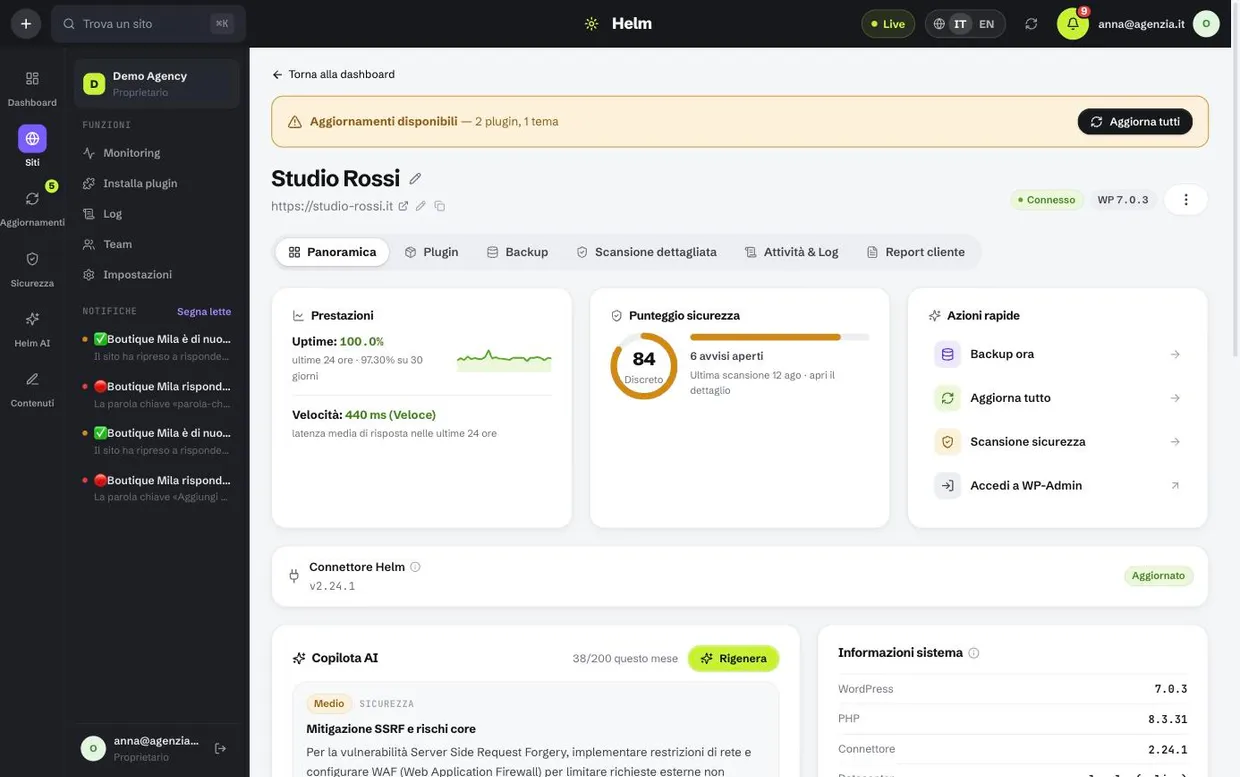
Monitoring and availability
The check is external: Tendfolio calls the site from outside, the way any visitor would, without going through the connector. That is the difference that matters, because when WordPress goes down the plugin stops answering — and monitoring that relies on the plugin goes quiet exactly then. Here the check carries on and turns into an alert.
How to set up monitoring for a site
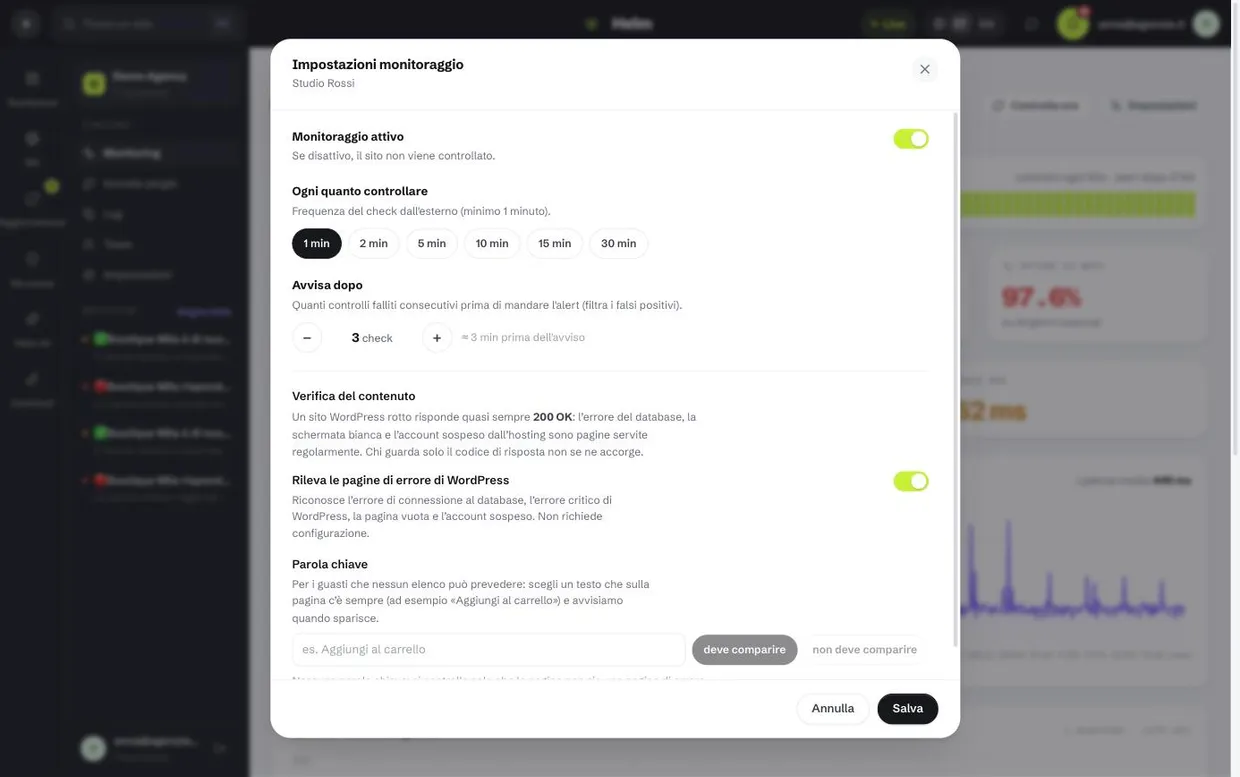
- Open Monitoring and pick the site, or go to its card: Settings is at the top right. The On switch next to the X pauses the checks without losing anything you set up.
- Under What we check pick one of the three cards. That it responds is enough for most sites. That a text is there is for something that MUST be there — an “Add to cart” button, a phone number, a product name: type it in Text to look for and we alert you when it disappears. That a text isn’t there does the opposite, for words like “Maintenance” or “Service suspended”. Keep WordPress error pages count as down ticked.
- Choose how often to check it on the interval line. One minute for sites that sell, five or ten for brochure sites: checking more often does not make them more reliable, it only shortens the gap between the failure and the alert. The free plan starts at five minutes — tighter intervals stay on the line with a lock, and the choice you made becomes valid again if you change plan.
- Under When to alert you set how many failed checks in a row should raise the alarm: next to it you read how much downtime that means. With three and a one-minute interval, a site has to be unreachable for three minutes before anyone is woken up: that is the filter that keeps network hiccups out.
- Below, Who to alert and how lists the people who can see the site, each with Email and Telegram: turn channels on and off person by person. A channel that can’t reach someone is off and says why — “email not confirmed”, “Telegram not linked”. With Add an email address you also alert someone outside the team, the client for example: they only get the email, without the link to the panel.
- At the bottom, the Post-update check row tells you how it is set up; Set up opens it. If after an update one page matters more than any other — the cart, the members' area — put it in Page to check, and beside it the text that is always there (“Proceed to payment”). A broken page often still answers “all fine” but without its content: that text is the only way to notice from outside. If it fails, the update is rolled back.
- Save. From then on the first check runs within a minute; Check now forces it immediately so you can see the outcome.
What it checks
- That the site answers, and how fast: an interval from 1 to 30 minutes, chosen per site. The minimum depends on your plan: five minutes on the free one, one minute on the paid ones.
- The confirmation threshold, that is how many consecutive failed checks are needed before declaring an outage. The usual value is three.
- The content of the page, not just the response code: it recognises the database connection error, the WordPress critical error, the blank page and an account suspended by the host. In all of those the server answers
200 OKand ordinary monitoring reports everything as fine. - A keyword of your choice that must appear on the page (or must not). It covers the failures no list can predict: a vanished cart, a broken contact form, a replaced homepage.
- HTTPS certificate and domain expiry, with staged warnings at 30, 14, 7, 3 and 1 day — and two months ahead for the domain, because renewing one can involve steps that do not fit into an afternoon.
- From two places in the world, Amsterdam and Virginia. Each one checks the site on its own, with its own threshold, and an outage is declared only when both see it: a network problem between us and the site, or a host that filters the addresses of a whole continent, never becomes an alert. On the site’s page, Vantage points shows what each one sees and with what response times. If one of the two stops, the checks carry on from the other.
How to read the numbers
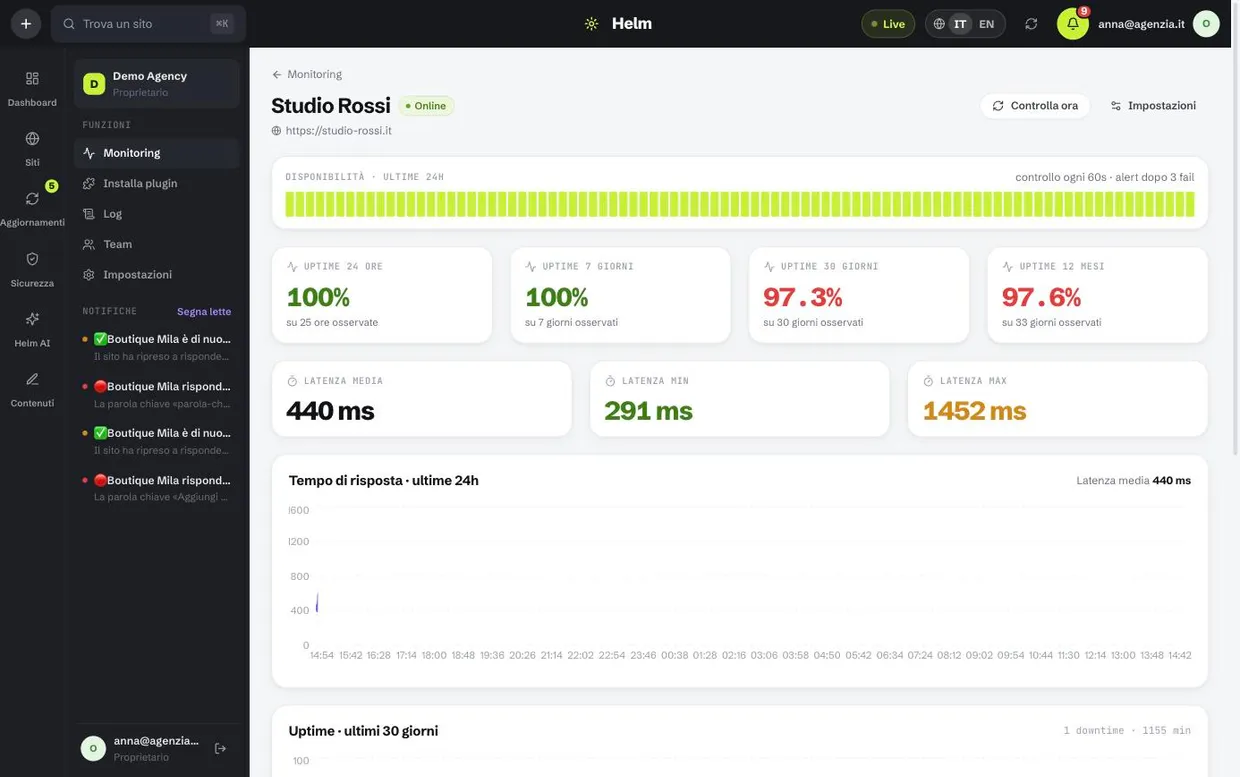
- Availability is measured over TIME, not over how many checks succeeded: under every percentage you get how much time we actually observed. “100% over 3 observed hours” and “100% over 30 days” are different things, and they should look different.
- Four windows: 24 hours, 7 days, 30 days and 12 months. The 12-month one is the number that ends up in contracts.
- Minimum, average and maximum response time over the last 24 hours, plus the chart: it is how you notice a site slowing down before it stops altogether. In the chart the “typical” line is the normal response and the light “peaks” band above it reaches up to the slowest response in each stretch; a triangle on the edge (“off the scale”) marks a peak beyond the scale, and the label at the top gives the highest one and when it happened.
- The outage list, with the cause in plain language (“the keyword disappeared from the page”) and the raw technical error underneath — the one to paste into a ticket for the host.
- Check now forces an immediate check without waiting for the next round: useful right after fixing something, to see whether it is back. It works up to three times a minute per site; beyond that, the button tells you how many seconds to wait.
- On the Monitoring page every site has its own card: in large type how it is right now (the response time, or how long it has not been responding), below it the thirty days as squares and three numbers — uptime, outages and certificate expiry. Above the cards, on one line, the numbers for the whole fleet and the filters. At the bottom, Latest outages gathers those of every site in the last 30 days, most recent first, with the cause written out: the site name opens its detail. The first five are shown; Show all opens the rest.
Performance, measured by Google
- The score is the PageSpeed Insights one, the same your client sees if they look it up themselves. We do not compute our own: a number of ours saying “good” where Google says 43 would be useless.
- It is measured once a week, on the mobile version — the one Google ranks on. More often would make no sense: the score moves when someone touches the theme, the plugins or the images, not from one day to the next.
- Next to the score is the change since the previous measurement: it is the line you use to show a client that the work paid off. It is missing on the first measurement, because there is nothing to compare yet.
- The three metrics below say WHERE the time goes: LCP is when the main content appears (usually an oversized image), CLS is how much the page jumps while loading, TBT is how long it ignores clicks because of scripts.
- The dot next to each metric uses Google’s thresholds: green, amber or red. The first measurement arrives within a few days of connecting the site, not immediately.
- Below the metrics there is What to do to go faster: the items come from Google with the estimated saving next to them — “compress the images · −2.4 s” — ordered by what pays off most. The score says there is a problem, this list says where to start.
- The AI copilot reads the same measurements and cross-checks them with the plugins you have installed, which Google’s report cannot do: “your LCP is 4.2 s and 60% of the weight is images — you have Elementor without an image optimisation plugin”. It does not cost an extra analysis: it travels inside the one you already ask for.
Planned maintenance does not pollute the statistics. While a site is in maintenance the checks are recorded but stay out of the availability calculation and raise no alerts: two hours of announced work does not cost you 0.3% of the month.
Updates
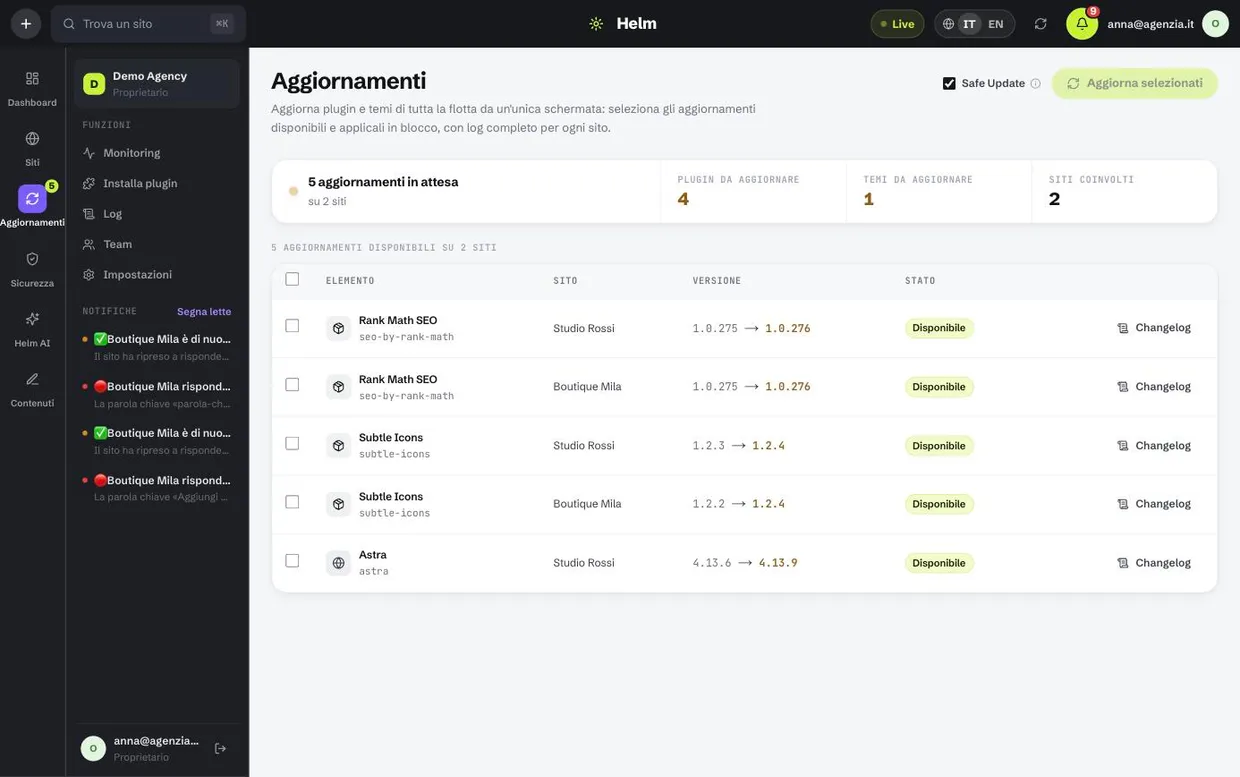
One screen for core, plugins and themes across the whole fleet. The gain is not only the time saved: updating the same plugin on ten sites in one operation means that if a release is broken you find out once and know it for all of them, instead of finding out ten times on ten different days.
How to update in bulk
- Open Updates: the list shows every available update with its site, the current version and the new one.
- If a version is unfamiliar, open the changelog from its row: you read it there, without hunting for it on
wordpress.org. - Tick the rows you want to update. You can select the same plugin across several sites in one go.
- Check that Safe Update is on: it is the switch in the bar below the list, and it takes a database backup before anything is touched.
- Press Update selected, in the same bar below the list, and let it work. On a long list the bar stays at the bottom of the screen, so you don’t have to scroll back up. When it finishes each row carries its outcome, and the activity log keeps the record.
What happens if something breaks
- Before updating, with Safe Update on, a copy of the site's database is saved.
- After the update Tendfolio calls the site back to verify that it still responds and is not showing a critical error. It checks the homepage and, if you named one in Page to verify, that one too: that is where the failures a homepage hides show up.
- If the site no longer answers, plugins and themes are rolled back to the previous version automatically, without waiting for you to notice.
- Either way you get an alert with what was updated, what failed and what was rolled back.
- How each plugin updates is chosen from the site’s Plugins tab: automatic updates (WordPress does them as soon as a version is out), manual updates (you do them from Tendfolio, with a backup first) or locked. Automatic is handy for security plugins, best avoided for anything that touches the layout.
- From a site’s page, Safe update first shows what will be updated and what will happen. Then a card at the top follows the steps — backup, updating one component at a time, site check — and at the end says in one sentence how it went: all good, something failed, or back to the previous version. You can keep working while it runs.
Updates made outside Tendfolio
- The Update button in wp-admin is one click away, and WordPress auto-updates ask nobody's permission. Tendfolio sees them anyway: the connector reports the moment it happens, not at the next scan.
- In the log you find what changed, from which version to which, and from where: the WordPress panel, an automatic update, or the command line. If it was a site user, who it was as well.
- Right afterwards Tendfolio checks that the site still responds, using the same pages as a safe update. If it broke you get a high-severity alert naming the component that was touched.
- Tendfolio never rolls anything back on its own. An update you did not ask for may have been wanted by somebody else — the client, a colleague — and undoing it behind their back would be worse than the fault.
- For 48 hours the site page shows a banner with Roll back: you press it, after reading what would revert and to which version.
- It rolls back the code, not the data: if a plugin changed the database while updating, those changes stay. To roll back the data too you restore a backup.
- If a plugin kills WordPress outright — fatal error, blank page — the site can no longer speak, but a small watchman installed alongside the connector can: it survives the failure and tells you which file caused it. It only reports; it never deactivates anything by itself.
Choosing what to update from the Overview
- In To do, press View on the “N plugin and theme updates” row: the row opens and lists the plugins one by one, with versions and which sites.
- Untick the ones you don’t want to update now. New major versions (for example from 3.x to 4.x) start unticked: read what’s new first.
- Press Update N of M: only the ticked ones run, with Safe Update if your plan includes it.
How to lock a plugin
- Press Lock next to the plugin, from the open row on the Overview or from the row’s padlock on the Updates page; on the site’s Plugins tab choose Updates locked in the row’s menu.
- Choose where it applies: on all sites, including those that install it later, or on one site only.
- Write why, if it helps the team: “4.4.12 breaks the client’s theme” shows next to the lock.
- Keep Also stop WordPress automatic updates ticked if they are on for the site, then press Lock.
What a lock does
- The plugin stays at its current version: it no longer shows among things to do, it doesn’t count as an update and bulk updates skip it.
- It applies everywhere: the Overview, the Updates page, the API, Tendfolio AI and the Fix button on security alerts.
- With connector 2.37 or newer the site also stops WordPress automatic updates for that plugin. With an older connector the lock only applies to Tendfolio.
- The Update button in wp-admin stays: whoever works on the site can still update it by hand, and Tendfolio records it as an update made outside.
- Locks are at the bottom of the Updates page, with what they hold back, why and who set them; Unlock puts the plugin back among things to do.
How to look at the visual comparison
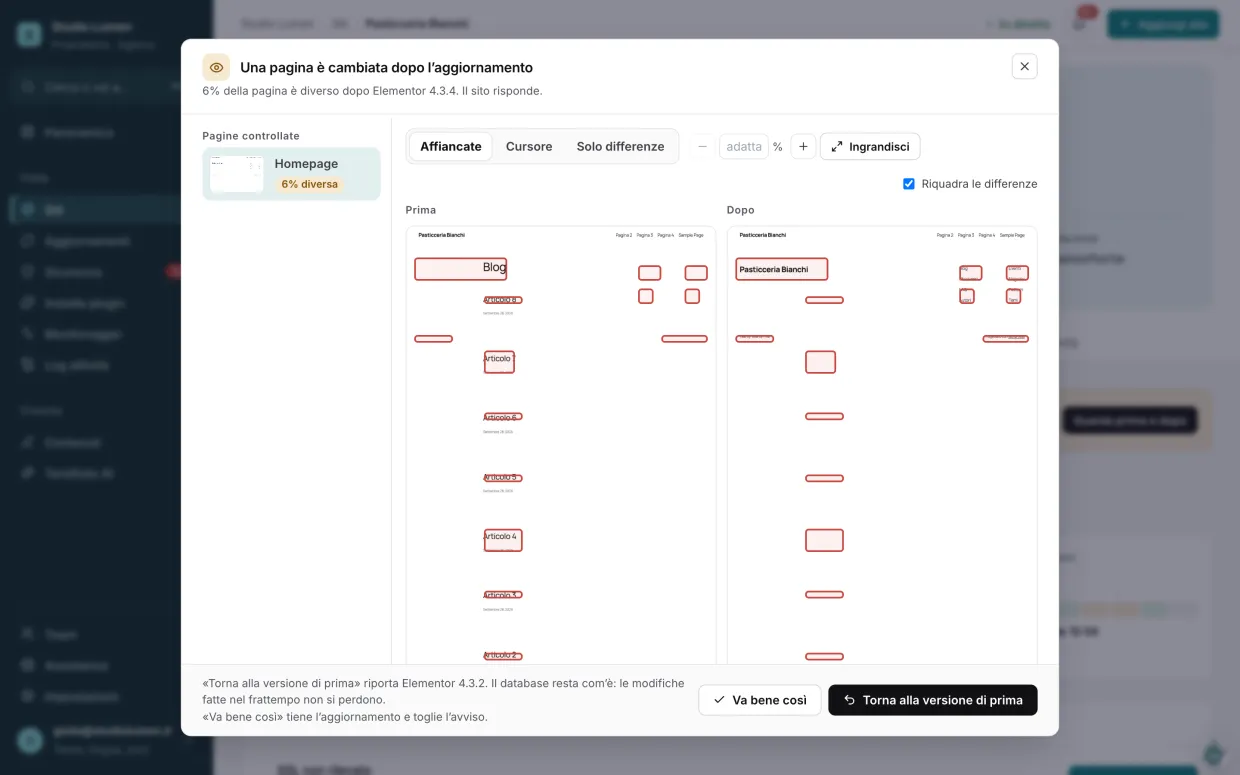
- When an update changes how a page looks by a lot, you find it in To do and at the top of the site’s Overview (“An update changed how the site looks”), and you get an alert.
- Press See before and after: on the left the pages checked with how much is different, on the right the two screenshots side by side with the changed areas outlined in red. Zoom in shows them at full size and scrolls them together; a click on an outline takes you straight there. Slider overlays them and you compare by dragging; Differences only shows the after screenshot with the areas filled in. Hold Ctrl (⌘ on a Mac) and use the wheel to zoom in and out where your mouse points.
- If the change is intended — a plugin that redesigned its look, a new banner — press Looks fine: the alert goes away and the update stays.
- If something broke, press Roll back: the plugins and themes of that run go back to their starting version. The database stays as it is, so changes made in the meantime are not lost.
What to know about the visual comparison
- It is part of the safe update, from Pro up: before updating Tendfolio takes a screenshot of the homepage and of the check page you chose, and takes them again afterwards.
- It alerts you when at least 5% of a page is different. It counts areas, not single pixels, and the part you see on opening weighs on its own: a broken hero doesn’t get lost in a long page.
- It doesn’t roll back on its own: automatic rollback stays for real failures, when the site doesn’t respond or shows an error. A change in look is your call.
- Areas that change on every visit — cookie banners, chats, videos, embedded content, carousels — are left out and shown striped. To recognise carousels and dates the page is captured twice before the update.
- Screenshots go up to 3000 pixels tall and are kept for 30 days. A page behind a password is captured as a visitor sees it: the comparison covers the public part.
Plugins across sites
Find a plugin and install it on ten sites in a single operation, or upload a zip of your own — a paid plugin you hold a multi-site licence for, for instance.
How to install across several sites
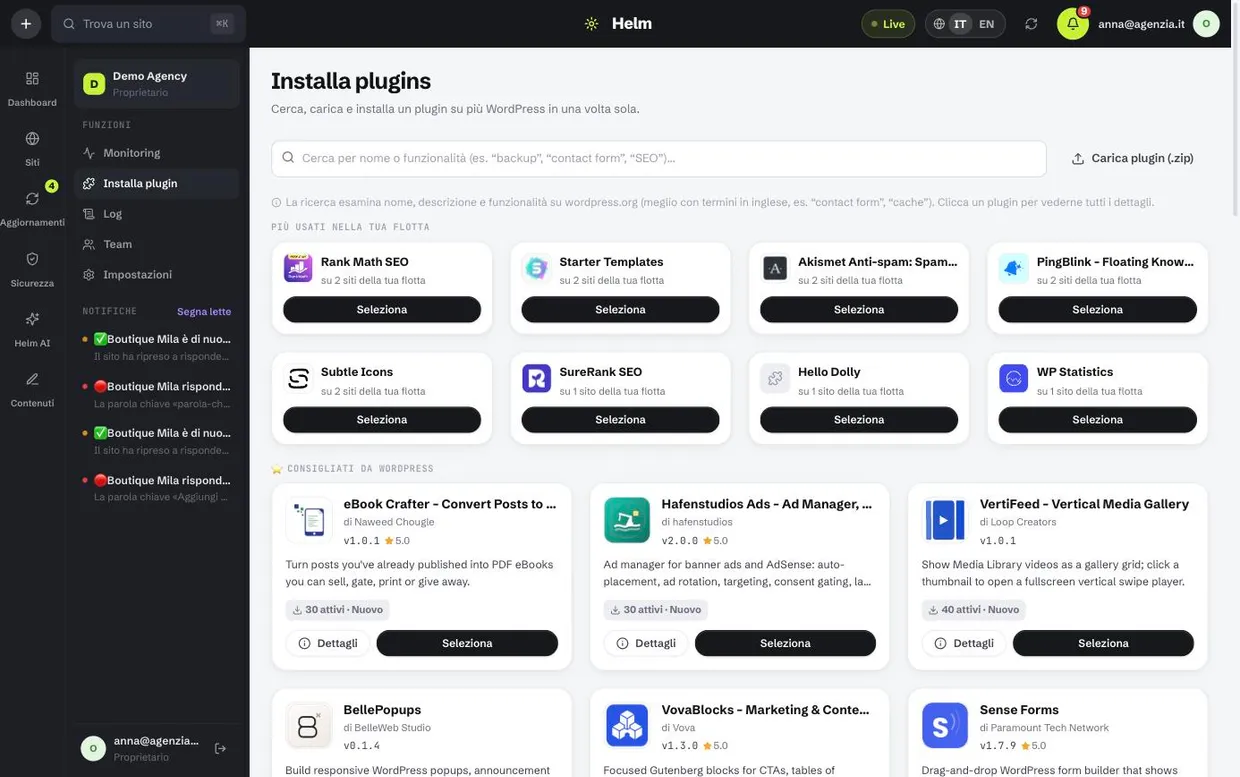
- Open Install plugins — from the menu on the left, or from a site’s Plugins tab, which opens it with that site already ticked — and search by name or by what it does, or use the shortcuts under the search (SEO, Security, Cache…). The search queries
wordpress.organd works better in English: “contact form” finds more than its translation. - Open the details if you want to check rating, active installations and the date of the last update — a plugin untouched for two years is a risk, not a saving. The tabs hold the full description, the latest reviews, what’s new in recent versions and the FAQ; Add to install sits at the top, next to the icon.
- Press Add: the plugin goes into the To install panel on the right (on a phone, at the top of the page). You can add more: each one has its own sites to tick and its own Activate switch, because the right site for one plugin is not necessarily right for another. Press Chosen again to remove it.
- Once every plugin has at least one site, press Install: Tendfolio installs each one on its own sites and shows the outcome plugin by plugin, row by row. Sites that already have a plugin are marked “Already installed” and cannot be ticked.
Worth knowing
- Most used in your fleet shows what you already have elsewhere: it is how you avoid ending up with two plugins doing the same job on different sites.
- A paid plugin is uploaded as a
.zipand installed where needed, exactly like the ones from the catalogue. - The Activate after install switch starts on: turn it off if you only want to upload the plugin and activate it later from the site card.
- Activation, deactivation and deletion happen on the individual site’s Plugins tab. Only an inactive plugin can be deleted, and the dashboard asks for confirmation on the row first.
Security
We do not invent vulnerabilities: they come from the Wordfence Intelligence feed, the public record of known flaws in WordPress plugins and themes, with the CVE code and the version that fixes them. On top of that come configuration checks — the things left open on a site out of inattention.
How to close an alert
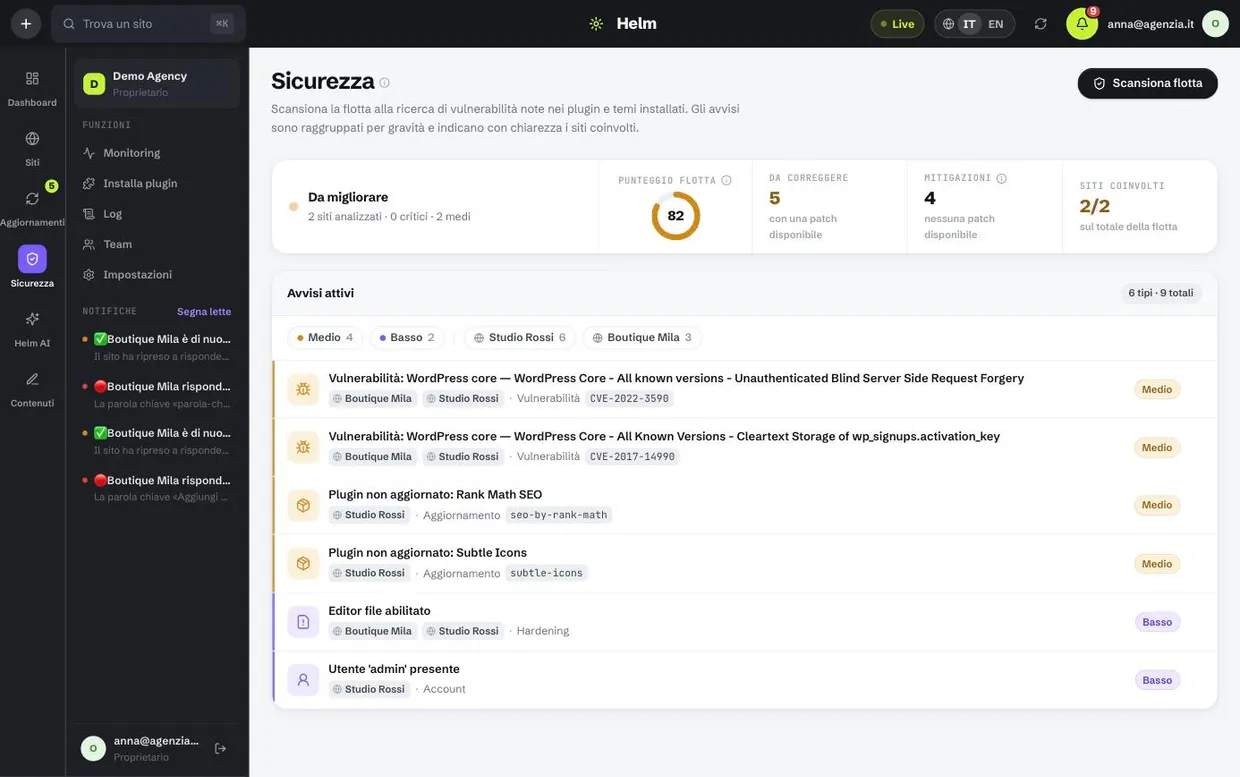
- Open Security: alerts are sorted by severity and each row says which sites are affected. Vulnerabilities of the same plugin share a single row (“Contact Form 7 · 5 known vulnerabilities”): one update usually closes them all, and opening the row shows them one by one.
- Click the alert: its card opens on the side, with the list still in view. At the top, the kind of flaw in plain words and, below, What’s at risk: who can exploit it and what they get, in one sentence.
- How to fix it has a single button: it updates the component on every affected site — with Safe Update, if your plan includes it, a backup first and automatic rollback if the site stops responding. Only here, next to a site, updates that one alone. It only starts when you press it, never on its own. After the click the card follows the work site by site — backup, update, check — and, once the security check Tendfolio re-runs by itself is done, says whether the vulnerability is closed, still open, or whether Safe Update had to put the site back as it was.
- If the alert does not apply to you (it happens: a generic check against a site with particular needs), press Ignore. The rule sticks and the alert does not return at the next scan.
- Run the scan again to verify: the score updates and the alert leaves the list.
What you see
- A score from 0 to 100 for every site and a fleet average: it is there to tell you where to start, not to boast about.
- Known vulnerabilities with their CVE code, severity and the version that fixes them — which almost always means: update that plugin.
- Configuration checks: the file editor in the dashboard, a user called
admin, exposed XML-RPC, missing HTTP security headers, WordPress and PHP versions visible from outside. - The site's WordPress users: who they are, their role, when they last signed in. From here you block the ones no longer needed.
- A scan can be launched by hand on one site or on the whole fleet, and runs by itself at regular intervals anyway.
- On a site’s page, opening an alert shows, in this order: which component it concerns and what kind of attack it is, the facts that identify it (installed version, publication date, weakness type), what to do — with the version that fixes it and the button to update safely, or the explanation when no fix exists — and then the original advisory text, with its sources.
- The card also says how many other vulnerabilities the same update closes: for WordPress core or an outdated plugin it is often dozens of alerts at once, and the best reason to do it now. Next to each site you see whether it has a backup. Affected versions, flaw class, the feed’s original text and sources sit under Technical details, closed until you need them.
- At the top of the page, the fleet verdict: “At risk” has a pulsing red beacon, the other states a steady light. In every row, “2 of 2” and the small bar say how many of your sites that alert affects: red when it affects all of them.
Broken links
An address written into a page can die without anyone noticing: the site you linked to closes, changes structure, moves an article. The link stays there, and anyone clicking it gets an error. Tendfolio reads your published content, tries every address from the outside and tells you which ones no longer respond.
How to read it and fix it
- The check starts off on every site: open the site, go to the Links tab and turn on the Check enabled switch. The first pass starts straight away.
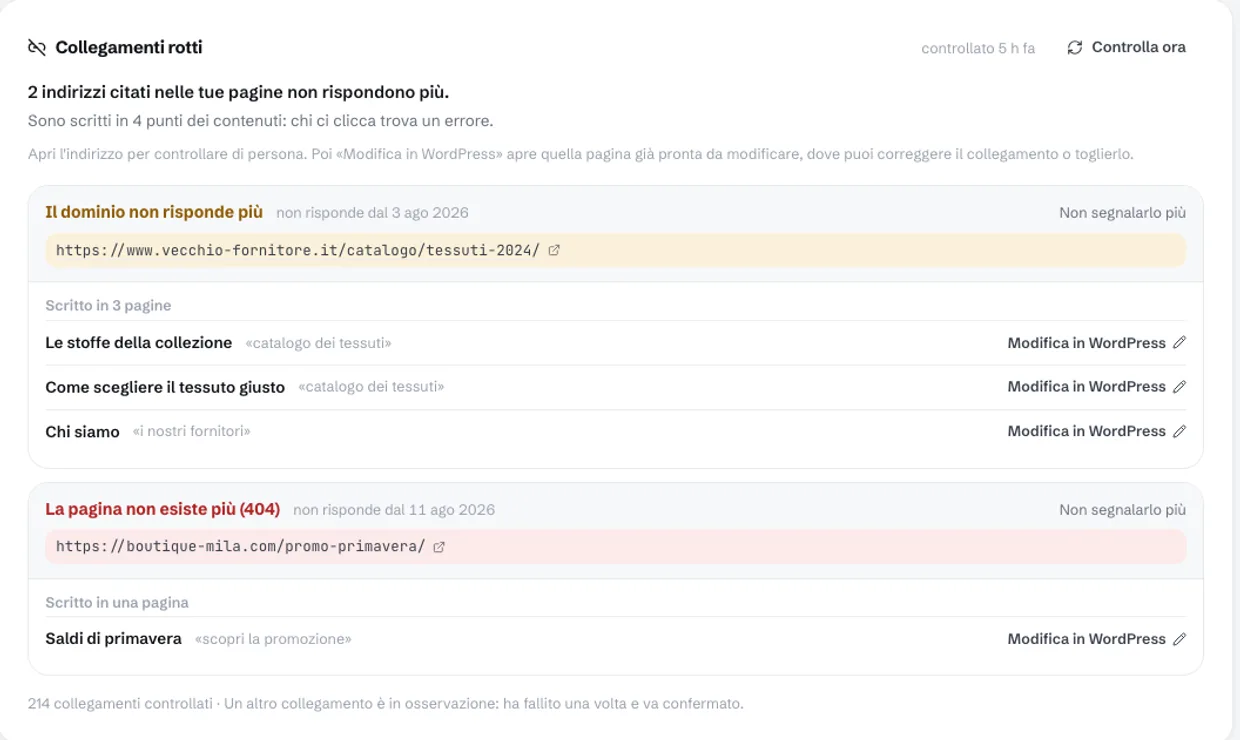
- Each box is one address that no longer responds: at the top you get the reason — “the domain no longer responds”, “the page no longer exists” — and the address itself, clickable, so you can see for yourself.
- Below are the pages where that address is written, with the clickable text in quotes: that is how you find it inside the article.
- Edit in WordPress opens that page ready to edit, with no password. Fix the address or remove the link, and save.
- At the next check the entry disappears on its own. If you are in a hurry, Check now runs the pass immediately.
- If you no longer need it, turn the same switch off: from then on Tendfolio sends no requests to those addresses.
What the system decides
- The pass runs daily and looks only at published content, up to 400 links per site.
- Entries are grouped by address, not by page: the same dead address written in four places is one problem with four fixes, not four problems.
- A
404is reported straight away, because the server itself says the page is gone. A network error or a500must repeat for three passes before it shows up: servers hiccup, and a list that cries wolf stops being read. - A
401, a403or a429is not a broken link: the page exists and is turning robots away. We don't report those. - Links that failed once or twice are counted at the bottom as “under watch”: we are keeping an eye on them, but we don't call them broken yet.
- Stop reporting it applies to the whole address and deletes nothing: it stays in the counts, it leaves the list of open problems.
- When there are broken links the site overview says so with a notice, and the number of addresses appears on the Links tab: you don't have to open it to find out.
- The check is switched on per site, not per organisation: you can keep it on for three sites and off for the rest, and sites that are off are not queried at all.
Backup and restore
Database and files, from the panel, without touching FTP or the host's control panel. A backup serves two very different purposes: going back when something breaks, and taking a copy away when a client changes provider. Tendfolio does both.
How to restore a backup
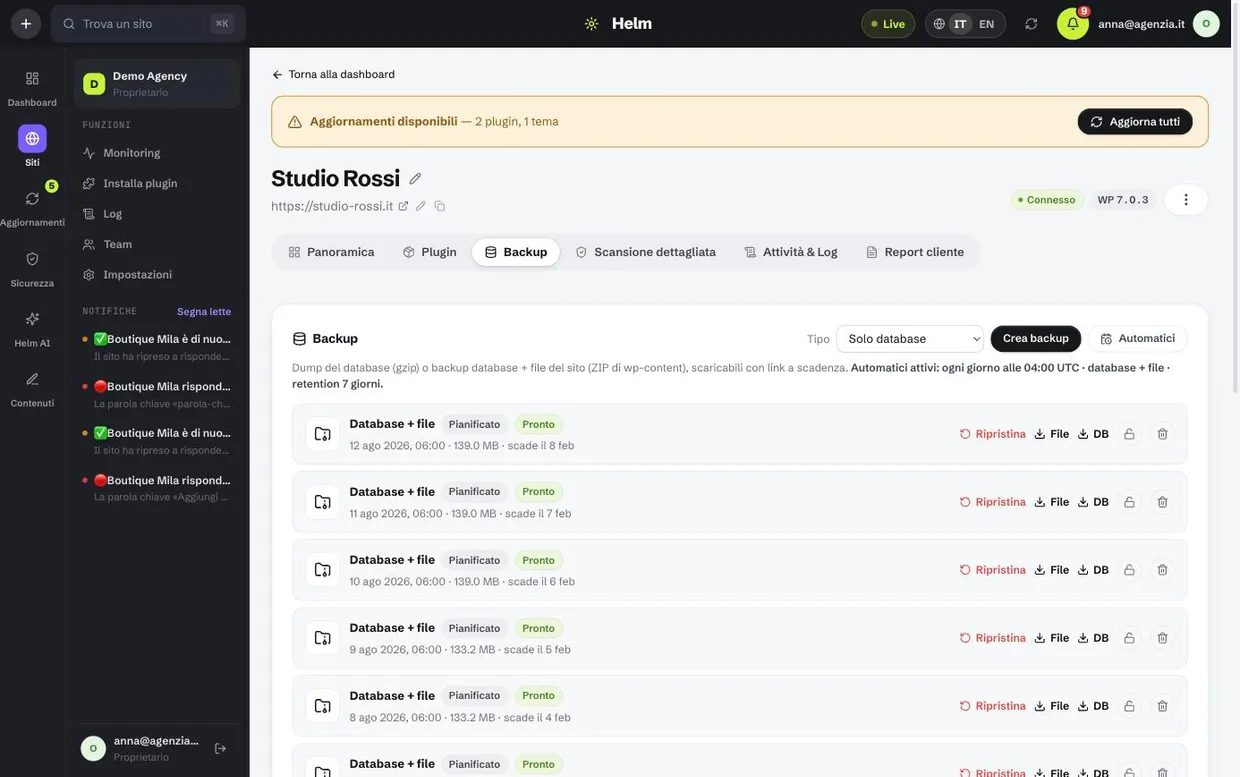
- Open the site card and go to Backups: the copies are listed by date, with type, size and expiry day.
- Pick the copy to put back. When in doubt take the last one before the problem, not the most recent one.
- Press Restore and confirm. The restore happens in chunks, so even an archive of hundreds of megabytes does not time out halfway.
- Wait for the operation to finish before taking the site out of maintenance: at the end Tendfolio checks that the site answers again.
How backups work
- Database only is a compressed dump: light, fast, and it holds content and settings. Database + files adds a zip of
wp-content, so themes, plugins and media. - Scheduled backups are set per site: how many hours apart, at what time and how many days to keep them. The starting period is your plan’s; for a site you can only shorten it, and the new period also applies to backups already taken, counted from each one’s date.
- Before every bulk update a safety copy is taken, if Safe Update is on: that is what makes the automatic rollback possible.
- Downloads go through an expiring link: you can send it to an outside developer without giving them panel access.
- In the Backup tab, above the copies, three cards tell you where things stand. Automatic backups says whether they are on or off; the switch turns them on and off right away, and Change time and contents picks when and what to save. Retention says how many days copies are kept, compared with your plan’s maximum, and that is where you shorten it. Storage shows how much of your plan’s storage is used, shared across all your sites; the ⓘ shows how much this site uses and how much the others do. When it is running out, a notice above the copies says how many more full backups of the site fit.
- A manual backup starts from two places: Back up now in the site header, from any tab, and Create backup, the header’s filled button when you are in the Backup tab. Both ask what to save: the database only, or database and files.
- Database size isn’t an obstacle: the dump is written and read back in chunks, on the site and here, and from connector 2.41 restores import it in slices too. So even shops with years of orders are backed up and restored like any other site. With an older connector, a restore imports the database in a single request, which on a very large database can take longer than the hosting lets a request run.
- The file archive also contains the site's
wp-config.php, with the database credentials but without the session keys and salts: those can forge an administrator sign-in, so they never leave the site. You need it the day you rebuild everything elsewhere: new ones are generated there and whoever was signed in signs in again. A normal restore never touches it, because overwriting a live site's configuration with a three-week-old one would take it down. - Every night Tendfolio re-reads each site's copies and checks that they are intact: the database dump line by line, the file archive from its internal index, and — for copies that build on a previous one — that every link in the chain still exists. A file that arrived half-written is found now, not on the day you need it. If a copy does not hold up, you get an alert.
- Site size no longer blocks a backup: the connector works in short slices and resumes where it left off, so no single request lasts long enough for the host to cut it off. On very large sites the archive is built in several parts, applied one after another on restore.
- Not every file copy weighs the same, and that is deliberate: when the site has changed little, Tendfolio saves only the difference from the previous copy instead of rebuilding the whole package. In the list that copy looks tiny, but it restores like any other — Tendfolio puts the pieces back together at restore time. Every so often it starts again from a whole copy, so the chains stay short.
- If not a single file changed on a given day, no new copy appears for that day: the site diary shows a “No files changed” entry and the previous copy stays valid. It is not a missed backup, and that is why no alert reaches you.
- A Database + files restore puts the site back as it was even for what appeared after the backup: plugins, themes and mu-plugins added later are removed, and so are code files that showed up among the media or in the
wp-contentfolder — that is usually where whatever an attack leaves behind hides. Photos and documents uploaded later stay: they are the client’s work. The Tendfolio connector is never touched. It needs connector 2.36 or later: with an older one, files created after the backup stay where they are. - From connector version 3.3 every site signs its backups as they are made, with a key that stays on the site only: the list shows “Signed by the site”. From 3.4, in a restore, the site checks every file and every piece of the database before writing anything, and an altered backup is refused without touching anything: not even someone who took control of Tendfolio could put invented files or data back on it. The first file backup after the update is always complete: it is where the signatures start.
- Backups without the site's signature — made before 3.3, or by another installation of the same site — go through only if whoever runs the site allows it in WordPress, Settings → Tendfolio, Allow for 24 hours. Tendfolio asks every site with connector 3.4 for this at its first check. The window closes by itself after 24 hours or at the first completed restore.
Every night backups past their period are deleted, including the ones taken before an update; locked backups stay until you unlock them. When your organization’s storage is full, the oldest restore points across all sites are deleted to make room for new backups — never each site’s latest, the locked ones or pre-update ones; only if that isn’t enough do backups stop, and we let you know. An incremental backup stays as long as the full one it builds on, so the list never shows a copy that can’t be restored. If a site matters less, shorten its retention instead of everyone’s.
Cloning a site onto another
Take a site that works and make a copy of it on another site you manage: same content, plugins, themes and users, at the destination’s address. Use it to launch a new site from one that’s ready, or to set up a test copy to work on without touching the real one.
How to clone a site
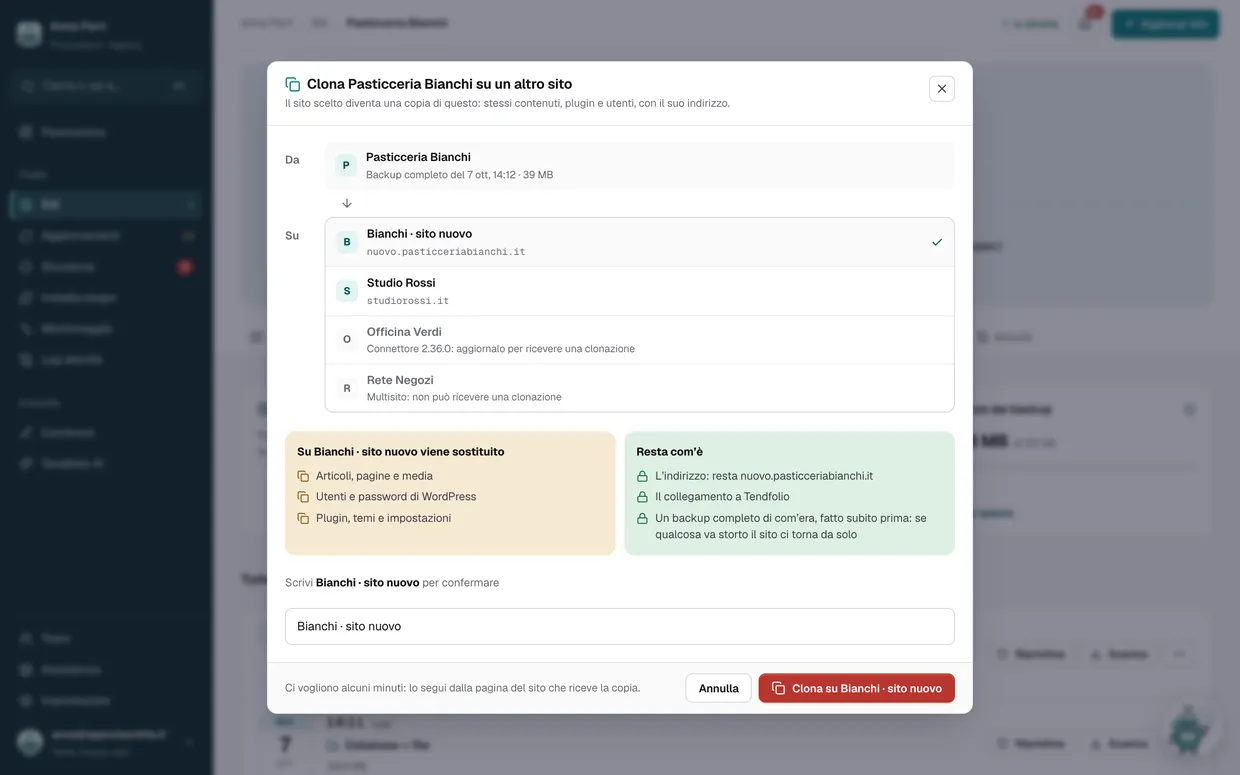
- Open the site to copy and, at the top, press ⋯ next to Open WP-Admin: choose Clone onto another site.
- Under Onto, pick the site that will become the copy. Sites that can’t be chosen stay in the list, each with its reason.
- Under Backup, the latest full backup is already chosen. You can pick an older one, or Make a full backup now if you want a copy of the site as it is right now.
- Read the two columns — what gets replaced and what stays — and the preliminary check, then type the destination site’s name and press Clone onto….
- The panel takes you to the destination’s page and shows where it’s at: backup of how it was, files, database, addresses. The outcome also stays in both sites’ activity log.
Filling a site you’ve just connected
- Connect the new site from Add site, even if it’s a fresh WordPress install.
- As soon as it’s connected, Tendfolio asks “How do you want to start?”: choose Copy another site, then the site to copy, and press Continue.
- In the window that opens, pick the backup — the latest full one or one made now — type the new site’s name and confirm.
- If you skipped the question, the Overview of the still-empty site shows Fill from another site: it leads to the same window.
What to know before cloning
- Everything in the database and in
wp-contentis replaced on the destination: posts, pages, media, users with their passwords, plugins, themes and settings. - The destination keeps its address and its connection to Tendfolio, with alerts, scheduled backups and monitoring as you had set them.
- The source site’s addresses inside the content become the destination’s: including data WordPress stores in serialized form and page-builder JSON like Elementor’s, with and without
https. - The two sites can have different table prefixes (
wp_,wpx_…): Tendfolio detects it and adapts everything, user permissions included. Tables of other installs living in the same database aren’t copied. - Before touching the destination, Tendfolio takes a full backup of it. If that fails, the clone doesn’t start; if something breaks halfway, the site goes back to how it was on its own. That backup stays in the list: if you change your mind, restore it whenever you like.
- To receive a clone, the site needs connector 2.40 or later. The source site works with any version, because the clone starts from its backup.
- Multisite installs can’t be cloned, neither as source nor as destination.
- You need permission to restore backups and access to both sites. It takes a few minutes, longer for a large site; you can close the page, the work carries on.
- Before starting, Tendfolio always runs a preliminary check: free disk on the destination, PHP extensions, backups or imports in progress, size of the database and of the backup, backup space. If something would stop the copy it says so up front, with the reason, and the button stays off; the check runs again when you start.
- From connector 2.41 the database is imported in slices, the same way it’s backed up: no request lasts more than about fifteen seconds, so its size is no longer a limit — what counts is time and the destination’s disk, which for a moment also holds the uncompressed dump. Files travel in parts, and an incremental backup is applied layer by layer: even a site of many gigabytes is copied. With an older connector the database is imported in a single request, and above roughly 10 MB compressed the clone doesn’t start.
- You also reach the same window from the ⋯ of a copy in the Backup tab, with that copy already chosen: use it to clone the site as it was on a given day.
- From connector version 3.4 the destination accepts only backups it signed itself, and a clone brings another site's: before cloning, whoever runs the destination opens WordPress, Settings → Tendfolio, Allow for 24 hours. The pre-check says so before starting, and the window closes by itself once the clone is done.
AI content
Describe the topic — or describe nothing at all. Tendfolio writes the article, generates the images, uploads them to the media library and files the piece into WordPress. It keeps alive a blog that would otherwise sit still for months, and lets you sell that as a service without writing it by hand.
How to generate an article
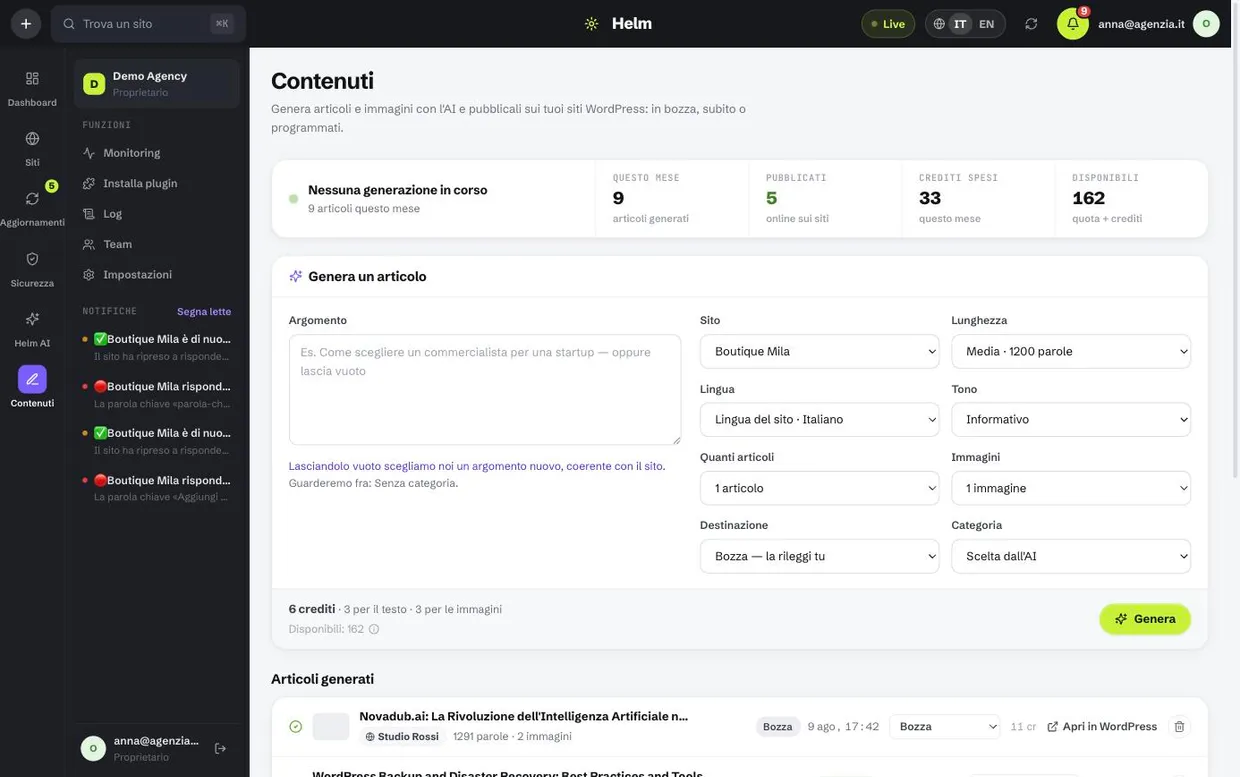
- Open Content. The generator has four numbered steps: in step 1 “Which site” tap the card of the site to publish on. With more than six sites, only the chosen one’s card stays: Change site opens the list with search, by name or address, and the recently used sites at the top. From a site’s page, the Content tab → Write with AI has the site already chosen.
- In step 2 “What it is about” write the topic, or leave the field empty: in that case the AI looks at the site's categories and its published articles, and picks a new one that is not a duplicate.
- In step 3 “What it looks like” adjust if needed: length with the buttons from Flash to Guide, images and number of articles with − and +, tone, language and category from the three menus below. The starting values are right almost every time.
- In step 4 choose where it ends up: Draft (you review it), Publish now or Schedule. With Schedule the month calendar appears: tap the days the articles should go out, one per article, and pick the time. A step’s number turns into a tick once it has what it needs; on the right the summary shows site, topic, articles, destination and when each one goes out, with the credit cost and how many you have left — if they are not enough, the button is off and the summary says how many are missing, with Buy credits leading to the packs in Plan & credits (for whoever manages the subscription; everyone else is told whom to ask).
- Press Generate. The article appears in the list below and moves along by itself: writing, images, publishing. At the end you get the link to open it in WordPress.
What the AI decides, and what you decide
- You decide: site, topic (if you want one) and destination. The rest — length, images, how many articles, tone, language, category — starts preset and changes with one click.
- The AI decides: title, excerpt, slug, categories, tags and the image prompts.
- The starting language is the site’s, not the panel’s: an English site gets an English article even if you use Tendfolio in Italian. If you need a piece in another language, pick it from the language menu.
- Images are uploaded to the site's media library like any other image, cover included: they stay yours even if you stop using Tendfolio tomorrow.
- If something fails halfway, the credits come back. If the article was published but an image was not, the article stays and the missing image is flagged.
- The editorial plan generates N articles every X days with the parameters you chose, and stops by itself when it reaches the monthly spending cap you gave it.
- When you schedule several articles, each one gets its own day: the calendar suggests one a day starting tomorrow, and you change them by tapping (one tap removes, another adds). They are numbered in release order. The time applies to all; for a different time on one day, change it in the list next to the calendar. Until the chosen days match the number of articles, or while a time today has already passed, the button stays off. The AI picks the articles while generating: to put a specific article on a specific day, afterwards press Change date next to it in the list.
Tendfolio AI
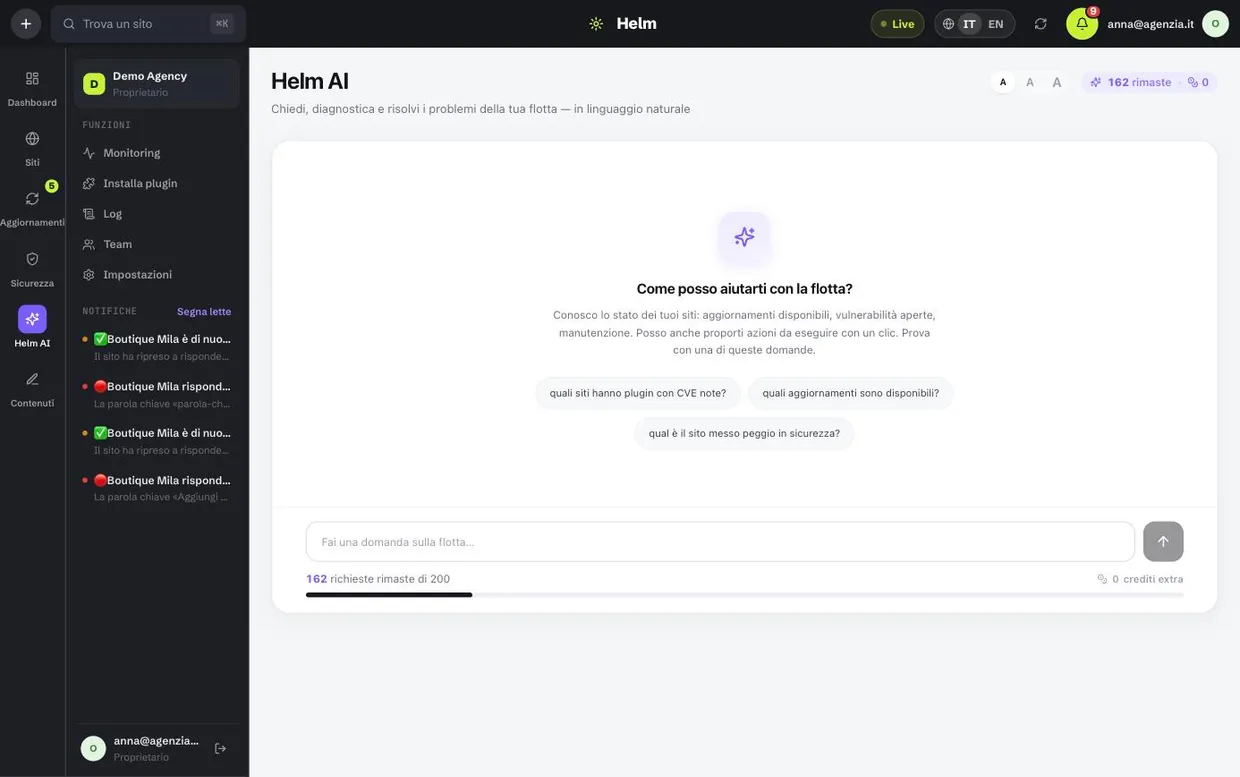
A question in plain language about your fleet, and an answer built on your sites' real data — not on what the model remembers about the world. It is the fastest way to answer questions that would otherwise mean opening ten tabs: which sites run plugins with known flaws, which one is in the worst shape, what changed yesterday.
- It knows site states, available updates, open vulnerabilities, backups and ongoing maintenance.
- Beyond answering, it can propose actions: update a plugin everywhere it is vulnerable, launch a scan, put a site into maintenance.
- Proposed actions never run by themselves: they appear as buttons and execute on one click, after your confirmation.
- Each question consumes one AI request from your plan; how many are left is written at the bottom left, and extra credits add to the included ones. Tendfolio AI rereads the whole conversation with every question: past 12,000 characters a question costs 2 requests, then one more for every further 12,000. The page says so before you send and suggests opening a new conversation, which costs 1.
- It opens from the mascot in the bottom-right corner, on every page: type your question in the box and Tendfolio AI opens with the answer. On the overview the mascot already has the first piece of advice ready, with the most urgent thing in your fleet.
- Conversations save themselves and stay on the left, grouped by day: you can pick them up again, search them by word and delete them with the bin. They are yours: the rest of the team does not see them. When you pick one up, the answer looks at the fleet as it is today.
- The ready-made questions under the box change with your fleet: a site that is not responding, the site with the most security alerts, the available updates, old backups. When everything is in order they are general questions to get started.
Client report
This is the document that justifies the invoice. When a client asks “what exactly do you do every month”, the answer should not be a speech: how long the site was up, which updates were applied, which vulnerabilities were closed, how many backups exist.
How to send a report to a client
- Open the site card and go to Client report.
- Choose the period — 30, 60 or 90 days — and press Generate report.
- Read the AI summary: it is in plain language, written for someone who does not know what a CVE is, and built on the real numbers of that period.
- Copy the public link and send it to the client, or open the report and print it to PDF if they prefer an attachment.
- If you want it repeated, switch on the automatic report: it is generated and sent every month without you remembering.
What it contains
- Availability for the period, with minutes of downtime and how many episodes there were.
- The updates applied, split between core, plugins and themes.
- Security alerts closed and still open, with their severity.
- The backups taken during the period and when the last one was.
- A written summary that ties the numbers together, so the client understands what was done without having to interpret them.
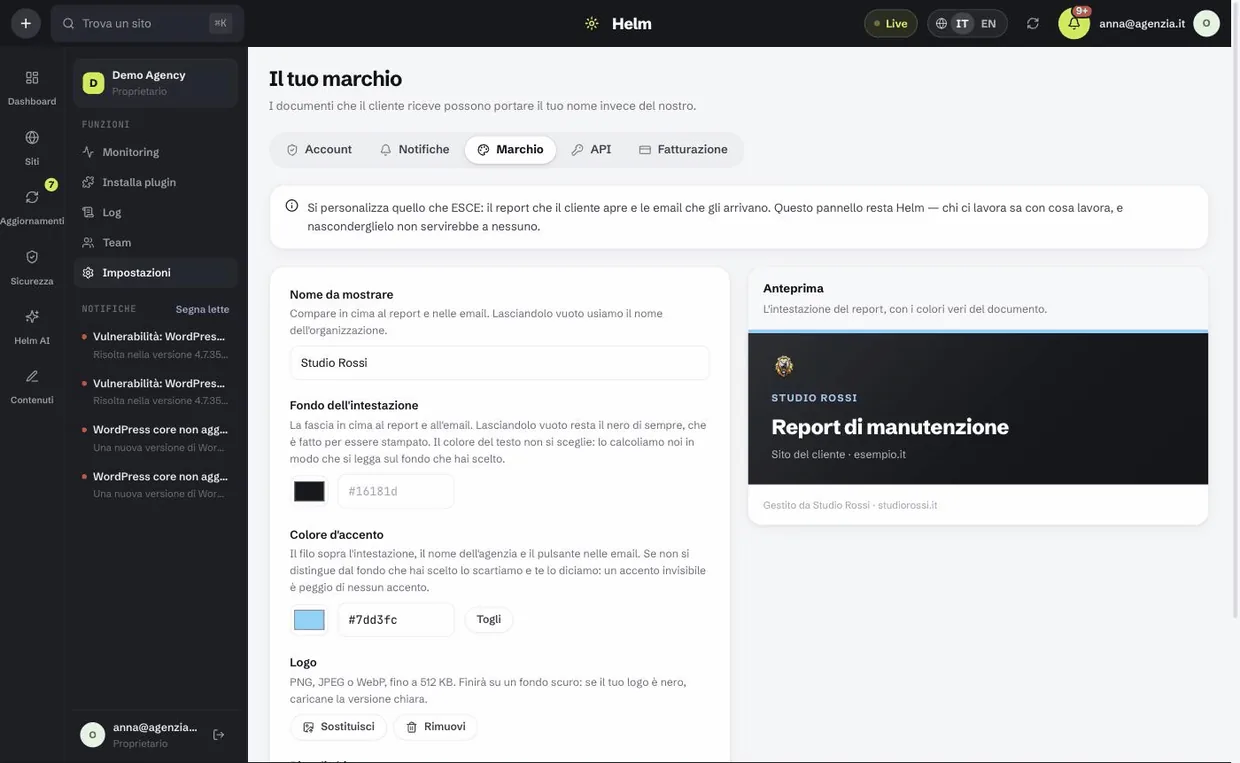
Your brand on the documents
The report you send to your client, and the email it arrives in, can carry your name, your logo and your colour instead of ours. The boundary is stated and deliberately narrow: what gets branded is the report, not this panel or the alerts — the people working in it know what they are working with, and hiding the tool from them serves nobody.
How to set it up
- Open Settings → Brand. If your plan does not include it you still see the screen, switched off, with what it would change.
- Type the display name: it is what the client reads at the top of the report. Leave it empty and we use your organisation's name.
- Upload the logo — PNG, JPEG or WebP up to 512 KB. Which version you need, the light or the dark one, the screen tells you itself based on the background you picked; the preview next to it shows how it really looks.
- Pick the header background: it is the band at the top of the report and the email. Leave it empty and it stays the usual black, which is made to be printed and filed. We do not ask you for the text colour — we work it out from the background, so on a light background the writing turns dark instead of vanishing.
- Pick the accent colour: it tints the rule above the header, your name and the button in emails. If it does not stand out against the background you picked we tell you, and use the text colour instead: an invisible accent is worse than none.
- Write the closing line — for instance “Looked after by Studio Rossi · studiorossi.it” — and save. It applies from the next report.
Where it shows, and where it does not
- It shows: header and footer of the client report, both on the public page and in the printed PDF.
- It shows: the automatic report email that reaches the client, with logo, colour and closing line.
- It does not show: the panel, the alerts that reach you and your team, Telegram notifications.
- The brand is frozen into the report when it is generated: if you change logo in November, June's report stays as it was when you sent it.
- If you drop to a plan without branding, documents go back to your organisation's name — the settings stay written and come back if you move up again.
We serve the logo ourselves, from our own address. We do not link to your site: a report lives for months in somebody's inbox, and an image that disappears leaves a broken rectangle in a document that carries your name.
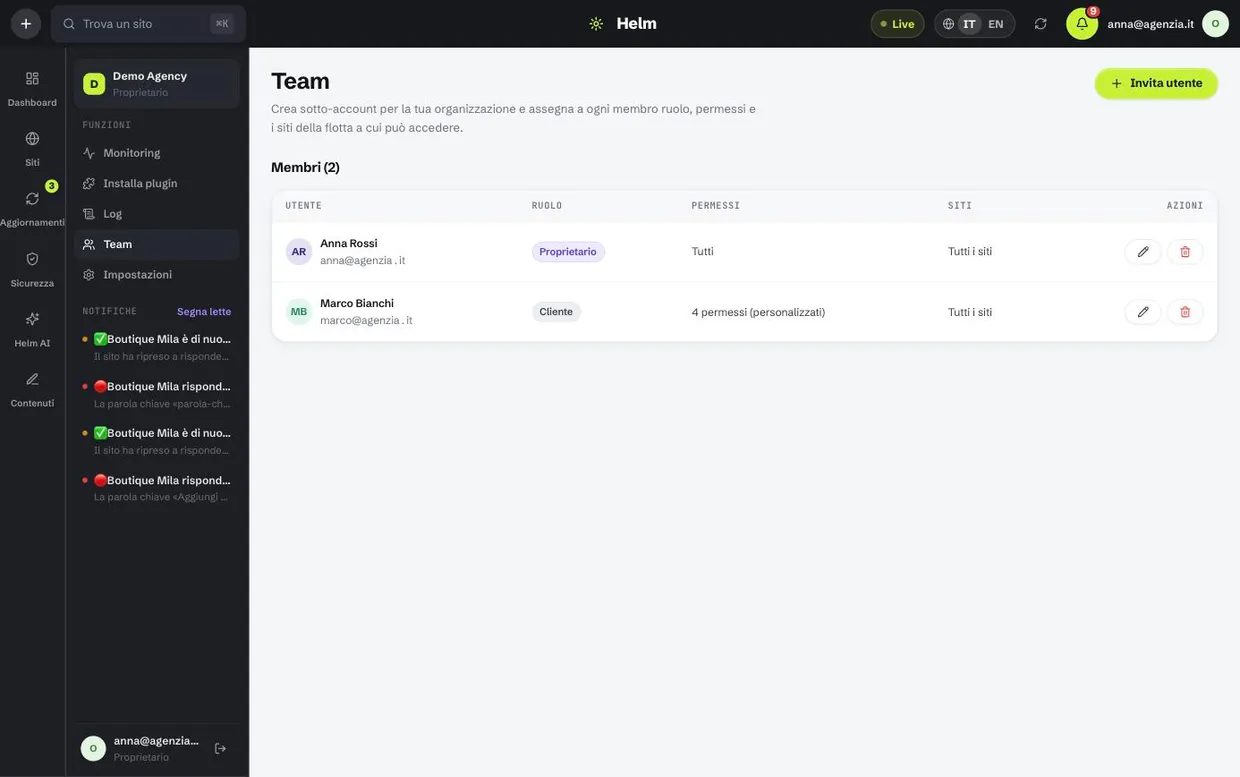
Team and permissions
The people who work on the fleet, and the clients who only need to look at their own site. The principle is simple: nobody should be able to touch sites that are not theirs, and a client should not even know the others exist.
How to invite someone
- Open Team and press Invite user.
- Type the email address and choose the role: Owner, Administrator, Member, Client or Read-only.
- Adjust the permissions if you need to: roles are starting points, not cages.
- Choose which sites they get access to — all of them, or only the ones you assign. Client and Read-only start from assigned sites: tick the ones they should see.
- Press Create invite: Tendfolio gives you a link that expires, which you copy and send to the person yourself — no email goes out. With that link they set their own password: you never see it and never have to invent one for them.
How the roles work
- Owner — can do everything, including plan, billing and removing other members. Usually there is only one.
- Administrator — manages sites, updates, security and the team, but does not touch billing.
- Member — works on the sites assigned to them: updates, backups,
wp-adminaccess, resolving alerts, asking Tendfolio AI. This is the role for whoever is in production. - Client — read-only on their assigned sites: state, security, reports, backups to download and the activity log of their sites, plus the AI suggestions. Of the alerts they get monitoring and security; update and backup alerts go to the people who work on the sites. They don’t ask Tendfolio AI questions and don’t generate or send reports: those use credits and write to third parties. Read-only is the same, without backup downloads.
- If the five roles are not enough, there are twenty-five granular permissions to combine as you like.
- The site limit applies everywhere, not just on the pages: in alerts, in the live updates the panel shows, in tags and in update locks. A client who sees only their own site does not even get the names of the others.
- If the plan no longer holds someone — it happens after a cancellation, when the organization goes back to Free — that person stays on the team with “Suspended” next to their role and can’t sign in. The owner stays in, and, up to the team limit, whoever joined first. No data is lost: moving to a plan that includes them lets them back in by themselves.
Who can join depends on the plan. Read-only clients (Client and Read-only) can be invited from Pro and don’t take a seat. The team, meaning the people who work on the sites, comes with Studio, up to 3 people including you, and with Agency with no limit. Invitations still open already hold their seat. If you change a client’s permissions so they can work on the sites, they count as a team member.
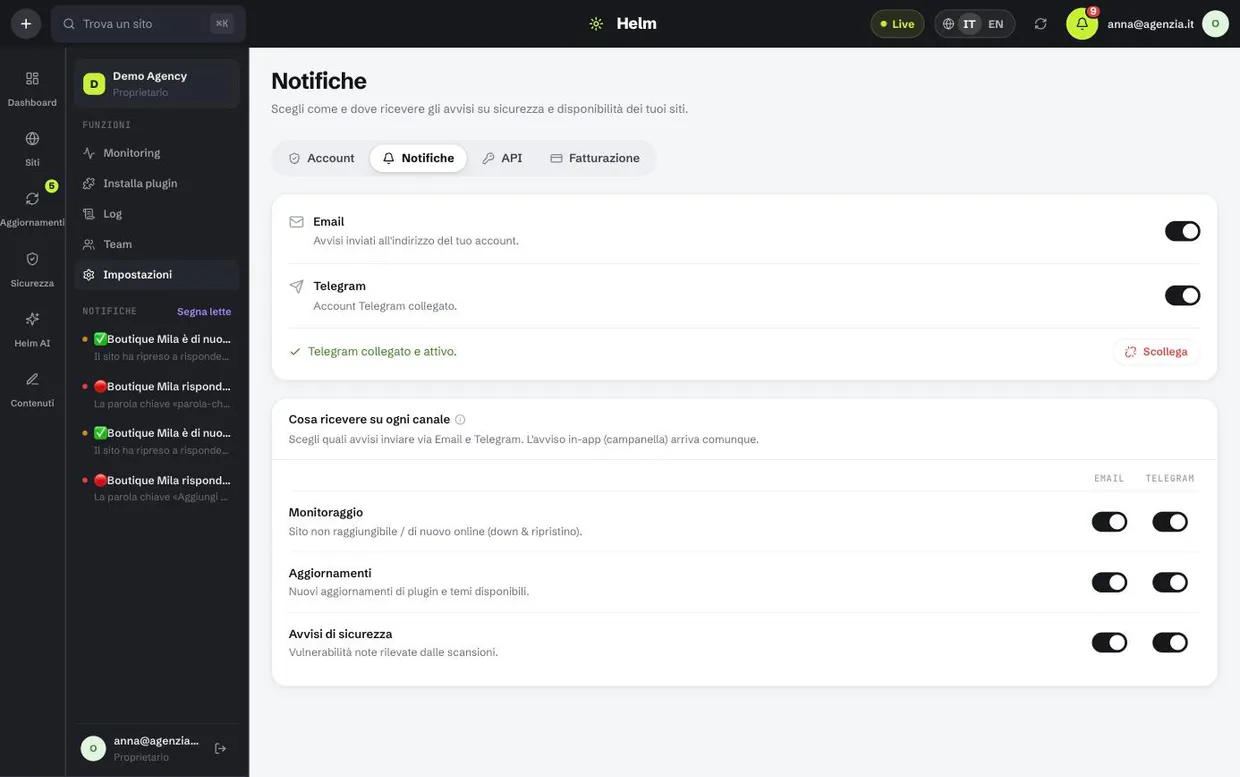
Notifications
An alert is only useful if it arrives where you are looking. The bell in the panel always gets them, but if a site goes down at night something has to ring: that is why email and Telegram are chosen category by category, rather than all or nothing.
How to connect Telegram
- Open Settings → Notifications and turn on the Telegram switch. Telegram is included from Pro; on Free, alerts arrive by email and in the dashboard.
- Follow the link that opens the conversation with the Tendfolio bot and press Start.
- Back in the panel the state becomes “connected and active”. From there you choose which categories go to Telegram and which go by email.
What you can receive
- Monitoring — site unreachable and back online. These are the urgent ones, the ones worth sending to Telegram.
- Updates — new plugin and theme updates available. Fine by email, once a day.
- Security — known vulnerabilities found by the scans.
- Backups, content and billing — outcomes of scheduled backups, generated articles, plan renewals.
- An outage sends one alert, not one a minute, and a second one when the site comes back: if the phone rings twice, the story is over.
- For a single site you can decide differently: in its monitoring settings, Who to alert and how chooses who gets that site’s alerts and on which channel, and adds addresses outside the team. Where nothing is chosen these preferences apply; the master switches for email and Telegram stay yours.
- Alerts follow the team’s limits: an alert about a site reaches — in the bell, by email and on Telegram — only the people who can see that site; security flaws only those allowed to see security; failed backups and backup storage running out only those who make backups. The owner receives them all.
API and keys
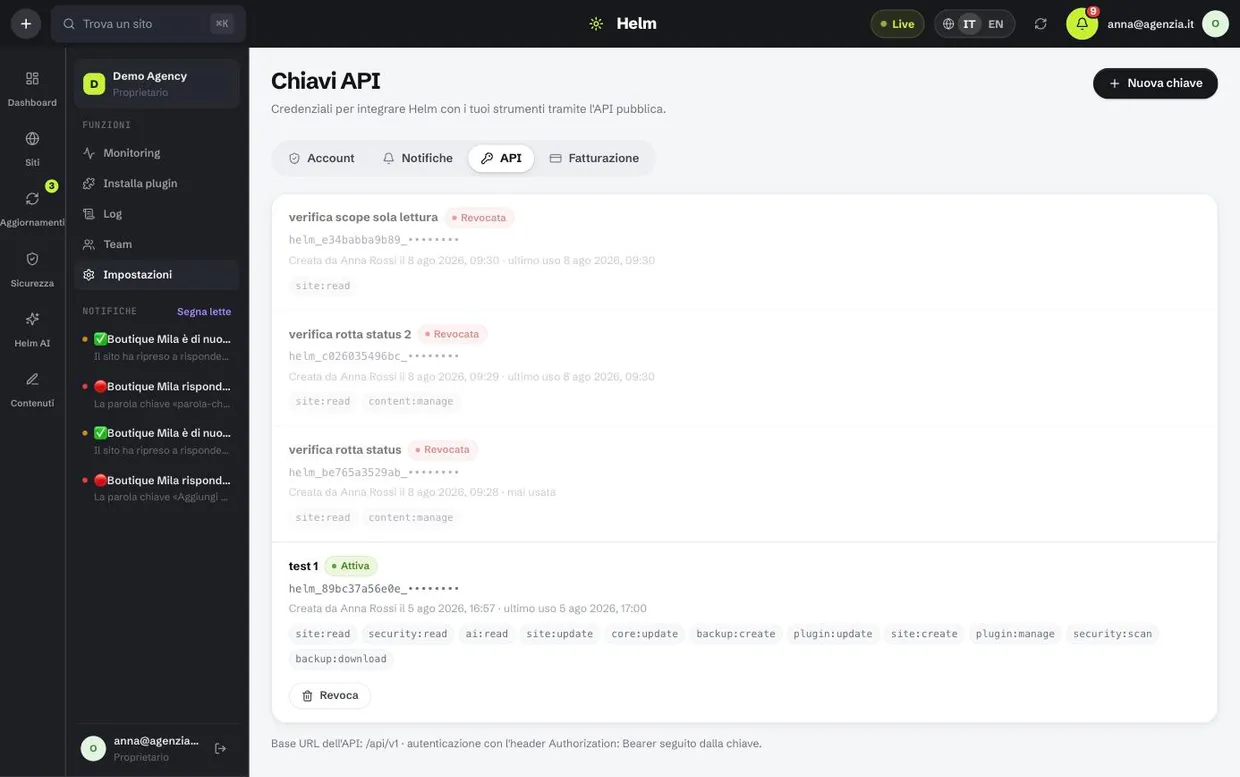
Everything the panel does can be done from code: list sites, apply updates, launch backups and scans, read availability, generate articles. It is for people who already have a dashboard of their own, or who want to wire Tendfolio into tools they already use.
How to create a key
- Open Settings → API and press New key.
- Give it a name that says what it is for: in six months “test 1” will mean nothing.
- Choose the scopes one by one. Give only what is actually needed: a key that reads state does not need to be able to delete backups.
- Copy the key and store it straight away: it is shown in full exactly once and cannot be recovered afterwards.
- Use it in the
Authorizationheader of your requests. Next to the key the panel tells you when it was last used.
Worth knowing
- Every key carries only the scopes you gave it, and you can review them at any time.
- There is a rate limit per key: it stops a misbehaving integration from hammering your clients' sites.
- A key can be revoked whenever you like, and stops working instantly from that moment.
- The full endpoint reference, with
curlexamples and responses, is in the API documentation.
Activity log
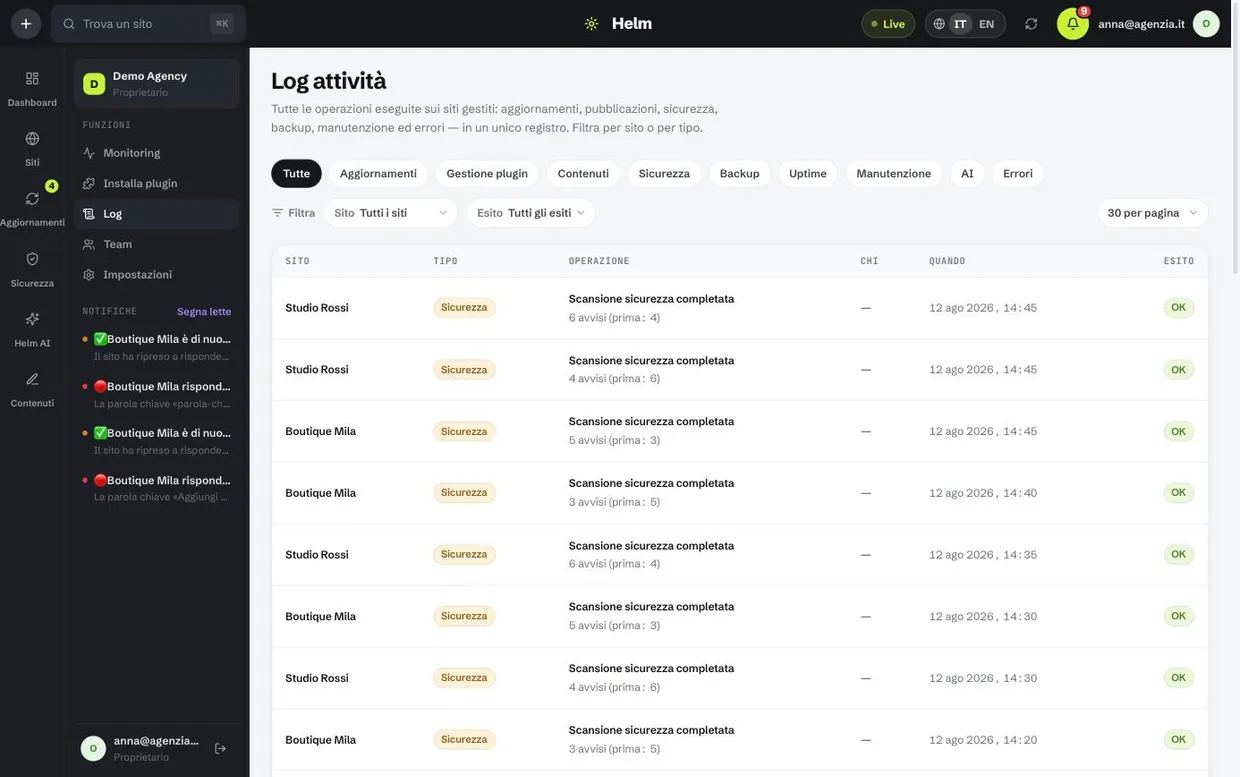
Who did what, when, and how it ended. Including changes made outside Tendfolio — a plugin activated by hand in wp-admin, a version changed by someone else — which the periodic scan finds and records. It is the fleet's memory.
- Filters by operation type — updates, plugin management, content, security, backups, uptime, maintenance, AI, errors — and by individual site.
- Rows are grouped by day, and each one shows the time. Every row carries its outcome, right next to the operation: succeeded, failed or with a warning. Failed rows contain the error returned by the site.
- Where an action was taken by a person, the “Who” column says who; for automated work the cell is empty, and when a page holds only automated work the column is not shown.
- It is the first place to look when something “did not happen”: it almost always did, and it failed with a precise message.
Account, plan and credits
Plan, credits, storage, invoices and sign-in security all live in Settings, in the menu on the left: for your account Profile & sign-in and Notifications; for the organisation Branding, Labels, API, Plan & credits and Invoices (these are shown only to people who manage the organisation). This is also where you recover your password and delete your account.
How to change your photo and name
- Open Settings → Profile & sign-in.
- For the photo press Change photo: pick one of Nova’s sixteen expressions, or switch to Your photo, drop a file (JPG, PNG or WebP up to 10 MB) and crop it inside the circle with the zoom. Press Use this one or Save photo: it changes right away, in the menu and in the team list.
- For the name press Edit next to it, type the new name and press Save.
- We send a 6-digit code to your account email: type it in the boxes that appear under the field. It lasts 10 minutes; if it doesn’t arrive, Resend it.
- With the right code the name changes. The email can’t be changed from here, because it’s the address you sign in with: to change it, write to support.
How to download an invoice
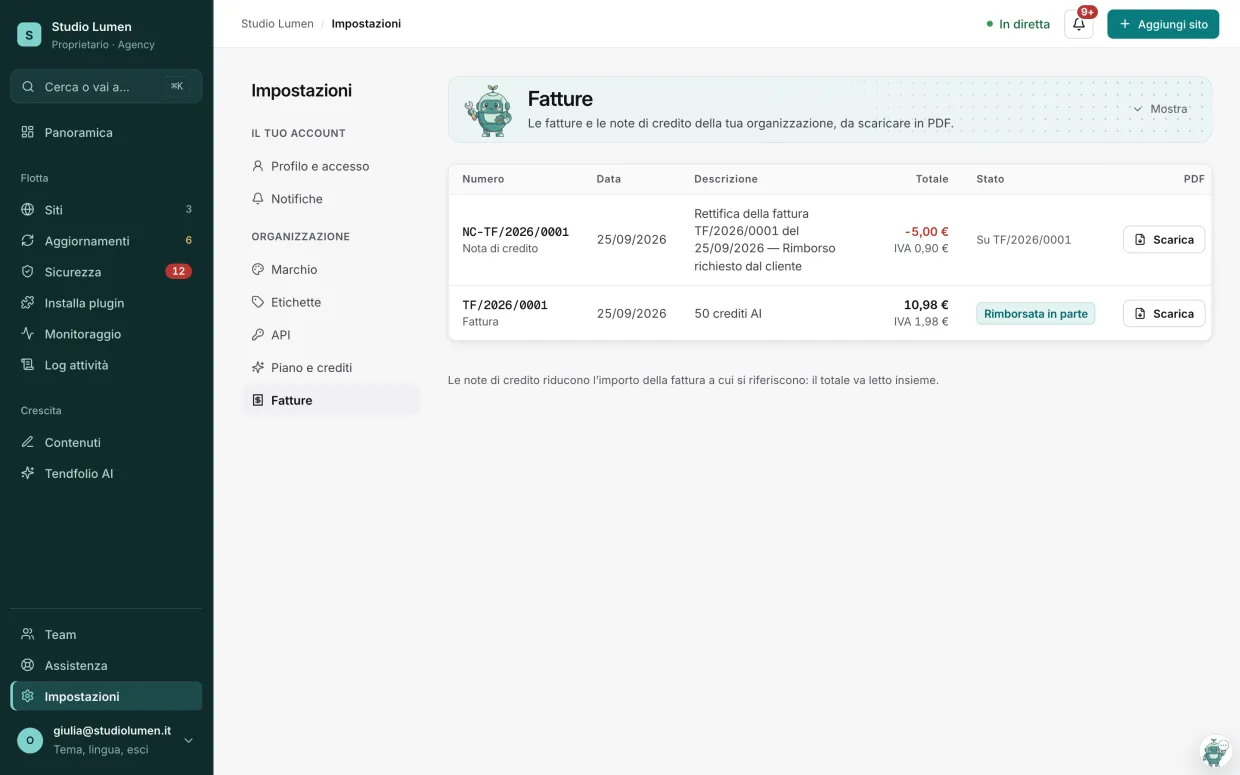
- Open Settings → Invoices.
- You’ll find your organisation’s invoices and credit notes, newest first, with number, date, amount and status (paid, fully or partly refunded).
- Press Download on the row you need: the PDF is saved to your computer, with the document number in the file name.
- To change your card or billing details, or cancel your subscription, press Manage card and subscription at the bottom of the page: it appears when you have an active subscription or a storage pack.
If you forgot your password
- On the sign-in page, press Forgot password?.
- Type the address you registered with: you get an email with a link, valid for one hour. Only the most recent link works.
- Open the link and choose a new password, meeting the requirements shown under the field.
- Sign in again with the new password. Sessions open on other devices are closed, and you get an email telling you about the change.
How to delete your account
- Open Settings → Profile & sign-in and scroll down to Delete account.
- Press Delete my account… and read the list: which organizations will be deleted and which you will only leave.
- Confirm by typing your password — or your email address, if you only sign in with Google.
- Press Delete permanently. You are signed out and receive a confirmation email.
- The plan sets three numbers: how many sites you can connect, how many AI requests you get a month and how much backup storage you have. They are always visible, along with how much you have used.
- Included AI requests reset every month; credits bought in packs do not — they stay until you use them.
- Your plan decides how many sites you can connect. On Agency you can go beyond 50: each extra site costs €1.50 a month (€18 a year on annual billing), prorated to the days left until renewal; when you remove one you stop paying for it from the next renewal, with no refund of the part already paid. How many you pay for is shown in Plan and credits, under the sites counter, and the Add site page tells you before you add one. To move down to a smaller plan you first need to remove the sites over its limit and the people it doesn’t include (teammates beyond its team, clients where it has none): the change summary tells you how many.
- Two-step verification is switched on from Settings → Profile & sign-in. Store the recovery codes somewhere that is not the computer you sign in from: at sign-in you can type one instead of the app’s 6 digits, and each works only once.
- The panel language is set here too, and it is independent from the language of the sites and of the generated articles.
- The theme — Light, Dark or System — is chosen at the bottom of the sidebar and applies immediately, without reloading. Tendfolio remembers it for this browser; the public pages of the site always stay light.
- After signing up you receive an email to confirm your address. Until you confirm it, a notice stays at the top of the panel and alerts about your sites don’t reach you by email; you can ask for a new link from the notice itself.
- Deleting your account deletes the organizations where you are the only member, with their sites, backups, reports and subscriptions (which are canceled). If an organization has other members and you are its only owner, you must first transfer ownership to someone: Tendfolio won’t delete your colleagues’ work. This can’t be undone.
- The paid plans can be tried free for 14 days, once per organisation: a card is needed to start them, but the first charge only comes at the end of the trial, and if you cancel before from Settings → Plan & credits → Manage subscription you pay nothing. Three days before the trial ends we email you: when it ends, what you will pay and how to cancel. Prices exclude VAT: VAT is added on the invoice based on the country and VAT number you enter at checkout.
- Plan & credits is where you buy: the plan, AI credit packs and extra backup storage, next to what you’ve used this month. Every purchase goes through a summary page that says what you’re buying, what you pay today and what you pay later — with the trial, zero today and the date of the first charge —; Continue to payment opens Stripe just for the card. To change plan, pick the new one in Plan & credits: on a trial the change applies right away and you pay nothing; moving up it applies right away and today you only pay the difference for the remaining days, with the exact amount shown before you confirm; moving down, or changing only the billing, it applies from your renewal and until then you can cancel it. Invoices is where you find what you’ve paid for: invoices and credit notes.
- A credit note adjusts an invoice and says which one it refers to: read the totals together. It comes from a refund to your card, or from a plan change that leaves a credit: in that case the money doesn’t go back to the card but is deducted from your next charges, and the “Payment” line of the next invoice says how much was paid with the credit. A “To pay” pro forma appears when a renewal is about to be charged, and becomes an invoice once the payment goes through.
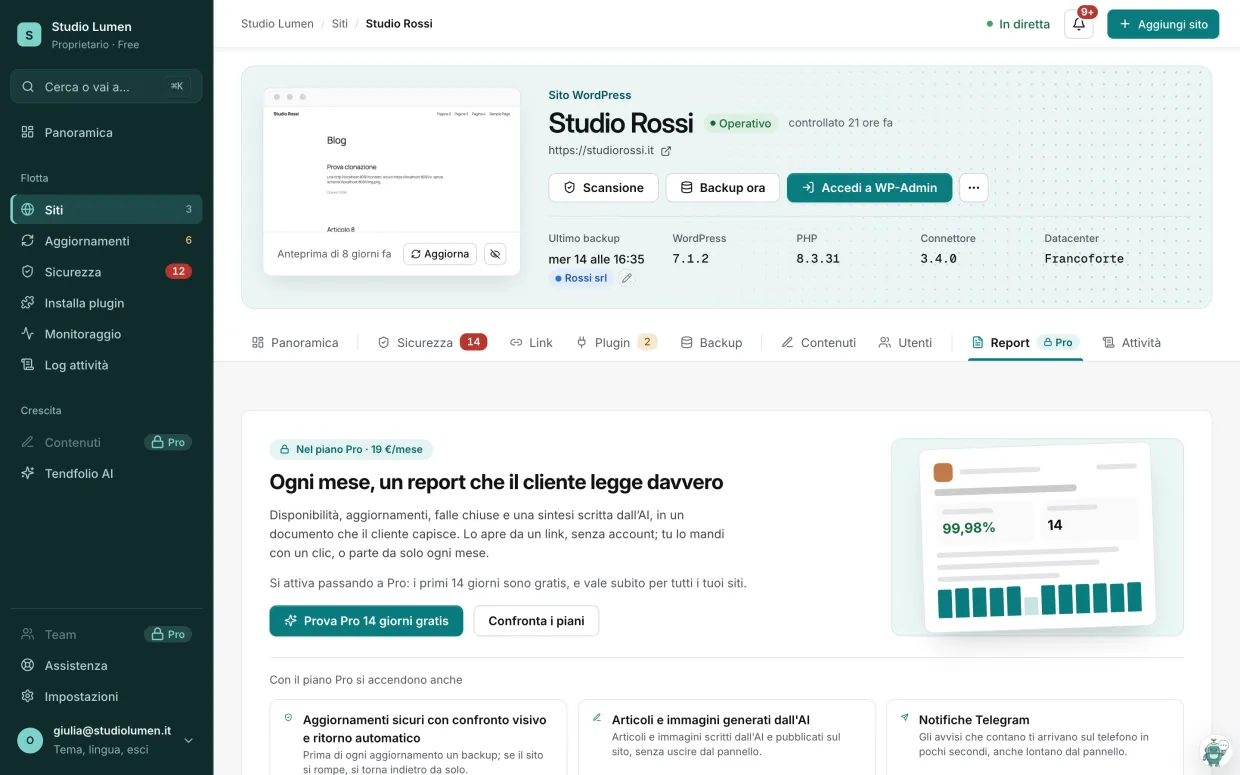
- Features your plan doesn’t include don’t disappear: you see them greyed out, next to the name of the plan that includes them (for example “Pro”). Hover or tap them: a card opens that says what they’re for, what that plan costs, and takes you to Plan & credits. The plan suggested is always the cheapest one that includes them. When a whole page is missing (Backups, Reports, Content, API), in its place you find what the feature does, what it looks like in use and how to turn it on: the button takes you straight to the purchase summary and offers the 14 free days only if you can still use them; below, what else comes with the same plan.
- With two-step verification on, Profile & sign-in shows how many recovery codes are left: Regenerate creates ten new ones (the old ones stop working) and Turn off switches it off. Both ask for a code from the app or a recovery code. People who sign in with Google must type the code too, if verification is on.
Support
When something doesn’t add up, you write to us from the dashboard, not to a mailbox nobody checks. The request stays in your organization’s history, with the screenshots and the replies, and the whole team can see it.
How to open a request
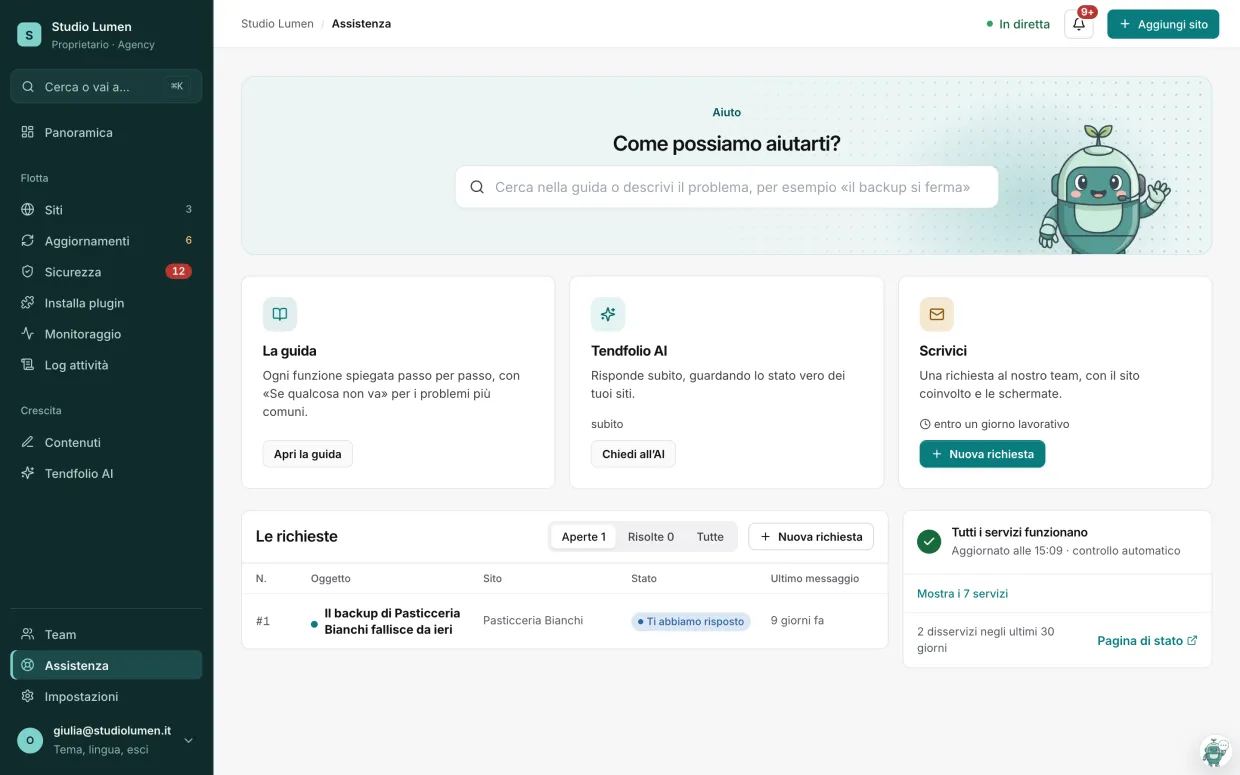
- Open Support from the side menu, at the bottom. At the top, in How can we help?, describe the problem in a few words: we suggest the passages of the guide that cover it, and you can pass the same question to Tendfolio AI. If that isn’t enough, press Write to our team or New request in the Write to us box: the form opens in a panel on the right, with the subject already filled in. Next to your requests you see whether a Tendfolio service has problems right now.
- Write a subject that states the problem in one line and pick the topic: technical issue, billing and plans, account and sign-in, other.
- If the problem concerns a site, pick it: whoever replies can open it without having to ask you which one.
- Describe what you were doing, what you expected and what happened. Attach up to four screenshots (PNG, JPEG or WebP, 5 MB each).
- Press Send request. When we reply you get an email; the conversation continues on the request’s page.
What to know
- Priority is set by the plan, not by who writes: on paid plans requests have priority and move ahead of free-plan requests in the queue. Support can raise the priority of a serious case by hand, and the request then says so.
- If you move to a paid plan while a request is open, it becomes priority with your next message. Priority never goes down on its own.
- Requests belong to the organization: every member can see them, and anyone can add details. They stay even if whoever opened them leaves the team.
- The status tells you whose turn it is: “In progress” means it’s on us, “We replied” means it’s on you.
- Once the problem is solved, Mark as resolved closes the request. If you write again on a resolved request, it reopens by itself.
- Reply emails are a notice, not a channel: if you reply to the email, the message doesn’t reach the request. Reply from the dashboard.
When something goes wrong
The cases that actually happen, with the most likely cause and where to start. If the problem survives these checks, the activity log always holds the exact error returned by the site.
- The site is “Disconnected” but opens in the browser — almost always the connector was deactivated during some maintenance, or a hosting firewall blocks outgoing requests to Tendfolio. Reactivate the plugin, then use Check now so you don’t wait for the next round. If the plugin was deleted or reinstalled, the key it knew is gone: use Reconnect it on the site card instead of deleting the site and adding it again, so you keep its history.
- An update failed — open the activity log and read the error returned by WordPress: nine times out of ten it is a PHP memory limit or a filesystem permission. If the site had stopped answering, Tendfolio has already rolled plugins and themes back on its own.
- Visits show as zero — the count comes from a statistics plugin installed on the site (WP Statistics, for instance) and active for a few days: Tendfolio reads its data, it does not collect traffic on its own. If the plugin was just installed, it needs a few days of data.
- Alerts are not arriving — check Settings → Notifications: that category may be off on exactly the channel you are watching. Remember the bell in the panel receives everything anyway, so if the alert is there, monitoring works and it is the channel that is off.
- Backups keep failing on the same site — usually out of space on the host, or a PHP memory limit too low to compress
wp-content. Try Database only to find out whether it is the file part that cannot get through. - Monitoring says down but the site opens — if you set a keyword, check that the text really appears on the page we check (the homepage), and not only on an inner page. It also happens that a site answers you well and us badly: in that case the technical error on the incident tells you which of the two it is.
- A client cannot see their site — check in Team that it has been assigned to them: with the Client role you only see the sites explicitly linked to that person.
- Broken links don't show up: the connector must be version 2.27 or newer — you update it from the site page — and the first pass runs within a day of connecting. Check now skips the wait.
- An alert says a backup is not restorable — that copy arrived incomplete or got corrupted in storage. The site itself is fine: run a manual backup from the Backup tab and check that the new copy passes the nightly check.
- An alert says an update made outside Tendfolio broke the site — open the site page: the banner at the top lists what was updated in the last 48 hours, and Roll back returns those components to their previous version. If the site does not respond at all, first check with the host that it is up: the rollback goes through the connector, and on a dead site the connector died with it.
- The Roll back button is not there — this happens in three cases: more than 48 hours have passed since the update, the update was to the WordPress core (which cannot be rolled back), or the site no longer responds. In the last two the route is the same: restore the most recent backup from before the failure.
- A red bar says Tendfolio's engine is stopped — it means the part that runs the work (checks, backups, scheduled updates, alerts) is not running, and the numbers you are reading are the last known state, not the current one. It is not a problem with your sites and there is nothing to do from the panel: write to us from Support. The bar disappears on its own a few minutes after the service is back. If the bar is yellow instead, only the checks from one of the regions have stopped: your sites are checked from the others, and backups, updates and alerts are working. In both cases Details on the status page shows the state of every service.
- A site is back online but the dashboard still shows the amber band and the “Recovered” status: that’s expected. Availability is measured over the last 24 hours, so the time the site was down stays in the count until it leaves the window. The band disappears on its own once availability is back above 99%.
- The email to reset your password or confirm your address doesn’t arrive — look in your spam folder and check you typed the address you registered with. Links expire (one hour for the password, two days for the confirmation) and only the most recent one works: if you asked for several, use the latest email.
- The update card says it has not heard back — the work may still be running: a large database backup takes a few minutes. Look at the site’s activity log; if the “Live” indicator at the top is off, the real-time channel dropped and reloading the page is enough.
- Support hasn’t replied yet — check the request’s status: “We replied” means the reply is already there, on the request’s page, even if the email ended up in spam. If a screenshot won’t attach, check that it’s PNG, JPEG or WebP and under 5 MB: PDFs and other formats aren’t accepted.
- Open takes you to WordPress but the key field is empty — the installed connector is older than version 2.35, or
wp-adminlives at a different address from the site (plugins that hide the login page, admin on another domain). Copy the key from the Tendfolio page and paste it into Settings → Tendfolio by hand: the result is the same. - After a full restore a plugin installed after the backup is still there — the site’s connector is older than version 2.36, the one that removes files created after the backup. Update it from the site card and run the restore again; meanwhile that plugin shows as deactivated, because the database went back to how it was.
- Update connector ends with “Failed” — the reason is written under the button, and on Updates when you hover the row. The most common case is a site that talks to Tendfolio over an http address: the automatic update only works over https, so download the connector and upload it by hand from WordPress. If the reason is the signature, the connector’s key is no longer the right one: use Reconnect it.
- A plugin has an update but doesn’t show among things to do, nor on Updates — it’s locked. At the bottom of the Updates page, under Locked, you see who locked it and why; Unlock puts it back among things to do.
- A site’s alerts don’t reach you — open Monitoring, the site, Settings, and look at Who to alert and how: your channel may be off for that site, or it says why it can’t reach you (“email not confirmed”, “Telegram not linked”). The alert is always in the panel’s bell.
- “You already have N people in the team”: your plan’s seats are taken, open invitations included. Revoke an invitation you no longer need, remove someone or move to a bigger plan; read-only clients can still join.
- “Pro can’t hold all your sites” (or another plan) when you change plan: the new plan has a lower limit than the sites you have. Remove the sites you no longer look after (the summary says how many) and try again, or stay on a plan that holds them all.
- “A page changed after an update”, but the page is fine — it happens with content that changes on its own (latest posts, prices, counters). Press Looks fine. If it happens on every update, choose a more stable page as the check page, from the site’s monitoring settings.
- “Clone failed”: the destination’s activity log says where it stopped and how the site was left — usually it has already gone back to how it was on its own. If a site can’t be chosen as destination, the reason is written next to its name: almost always the connector needs updating to 2.40.
- In Vantage points one region sees the site down and the other doesn’t: no alert goes out, because an outage is declared only when both confirm it. It’s usually a firewall or an anti-bot service at the host blocking that region’s addresses: ask your host to let Tendfolio’s checks through.
- Update connector says to reinstall the connector — this happens in two cases. The site was connected before version 3.0, when the connector lived in the
wp-fleet-connectorfolder; or it has 3.0 or 3.1.0, which the dashboard can’t update without switching them off. It still works, but it no longer updates itself. Reinstall it once: download the zip from the site’s … menu and upload it in WordPress under Plugins → Add New → Upload Plugin, accepting to replace the installed version; if the old one is inwp-fleet-connector, deactivate it first and delete it afterwards. The key stays saved, the site doesn’t need reconnecting, and from 3.1.1 updates arrive on their own. - A restore or a clone stops with “The site owner has turned off restores”, or Open WP-Admin says one-click login is off — whoever runs the site turned them off in WordPress, Settings → Tendfolio. They’re turned back on there, with the matching checkbox and Save. The site wasn’t touched.
- A restore or a clone stops with “not signed by this site” or “whoever runs this site must allow it” — the site accepts only backups it signed itself. Whoever runs the site opens WordPress, Settings → Tendfolio, Allow for 24 hours, then try again. If instead the message says the backup “doesn't match the site's signature”, that backup was altered: pick another one. Either way, the site wasn't touched.
- You can’t move to a smaller plan — the new plan doesn’t hold everything you have: sites over its limit, teammates beyond its team, or clients where it has none. The notice says how many to remove and where; pending invitations count too, and you can cancel them in Team. Cancelling, instead, is always possible.
- A teammate or client sees “Your access is suspended” — the organization’s plan no longer includes their role, usually after a cancellation. In Team they show as “Suspended”: move to a plan that includes them and they get back in by themselves, or remove them.
Frequently asked questions
Short answers to the questions we get asked most. Each one points to the part of the guide that explains it in full.
Do I have to give Tendfolio my WordPress password or FTP access?
No. You install the connector on the site, a plugin that only talks to Tendfolio: every request is signed with the connection key, and the WordPress username and password never go through it. Updates, backups and logins go through the plugin, with no FTP or hosting control panel.
In the guide: Connecting a siteWhat does the site need?
WordPress 6.2 or later and PHP 7.4 or later; the hosting doesn’t matter. The site must be reachable from the internet: one running locally, behind a VPN or behind a password won’t connect.
In the guide: Connecting a siteHow much does it cost, and how many sites can I connect?
The free plan includes three sites, forever, with no credit card. Paid plans differ in number of sites, AI requests and backup space, and come with a 14-day free trial; on Agency you can go beyond 50 sites at €1.50 a month each. Prices and differences are on the Pricing page.
In the guide: Account, plan and creditsWhat happens if an update breaks the site?
With Safe Update on, a copy of the database is saved before updating; if the site doesn’t respond or shows an error afterwards, Tendfolio goes back to the previous version on its own. If only the look of a page changes, it shows you before and after and you decide. The code is rolled back: to roll back the data too, you restore a backup. Safe Update is in the paid plans.
In the guide: UpdatesWhere do backups go, and how long are they kept?
Outside your hosting, in the Cloudflare storage we use to keep them: if the hosting fails, the backups survive. They’re kept for your plan’s period — you can shorten it for a site — and every night the expired ones are deleted, except locked ones. You download and restore them from the site’s Backup tab.
In the guide: Backup and restoreCan my client sign in to see their sites?
Yes, from the Pro plan: you invite them with the Client role and they see, read-only, status, security, reports, backups to download and the activity log of the sites you assign them. They don’t see other sites, the team or invoices, can’t update or restore, and don’t take a team seat.
In the guide: Team and permissionsCan the client report carry my brand?
Yes, with the Agency plan: name, logo, colours and closing line replace ours on the report and on the email that comes with it. The dashboard and the alerts stay Tendfolio’s.
In the guide: Your brand on the documentsWhere do you check from whether a site is online?
From two places in the world, Amsterdam and Virginia. An outage is declared only when both see it, so a network problem between us and the site doesn’t become a false alarm. How often we check depends on the plan.
In the guide: Monitoring and availabilityCan Tendfolio AI change my sites on its own?
No. It answers from your sites’ data and can suggest actions — updating a vulnerable plugin, running a scan — but they never start on their own: they run with one click, after you confirm, and only on paid plans. Every question uses one AI request from your plan.
In the guide: Tendfolio AICan I cancel whenever I want?
Yes, from Settings → Plan & credits → Manage subscription. The plan stays active until the end of the period already paid, then you go back to Free: sites stay connected and paid features switch off. If you cancel during the free trial you pay nothing.
In the guide: Account, plan and creditsHow do I disconnect a site from Tendfolio?
In WordPress, under Settings → Tendfolio, press Disconnect from Tendfolio: the key is removed from the site and Tendfolio can no longer do anything. Backups already made stay in Tendfolio.
In the guide: Connecting a site
Ready to connect your first site?
The free plan includes three sites, forever, with no credit card. The paid plans come with a 14-day free trial.